


Some moons ago I made an AppleScript to save attachments for selected emails with an Alfred workflow. A user wanted to have the AppleScript for incoming emails without user interaction.
Testing the AppleScript in a Rule
When doing my series on filters (or rules in Mail) I had mentioned that it's possible to do an AppleScript in a filter. The filter needs to know which email it needs to operate on. This is done with "on perform mail action with messages".
There are a couple of prerequisites for the new version of the script.
The AppleScript must be in a specific folder "user/username/Library/Application Scripts/com.apple.mail" like this:
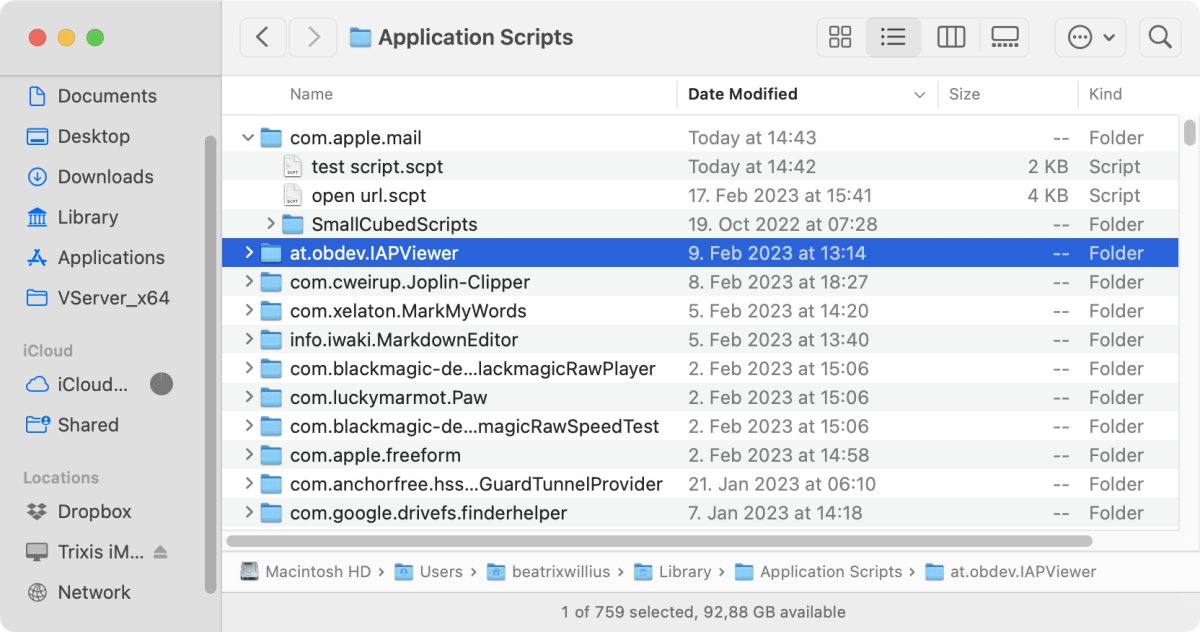
Then I did a test with the simple script like this:
using terms from application "Mail"
on perform mail action with messages theMessages for rule theRule
repeat with eachMessage in theMessages
display dialog "got a message"
end repeat
end perform mail action with messages
end using terms from
As I want to do some testing and I don't want to wait until I get a new email I'm going to use Mail Act-On: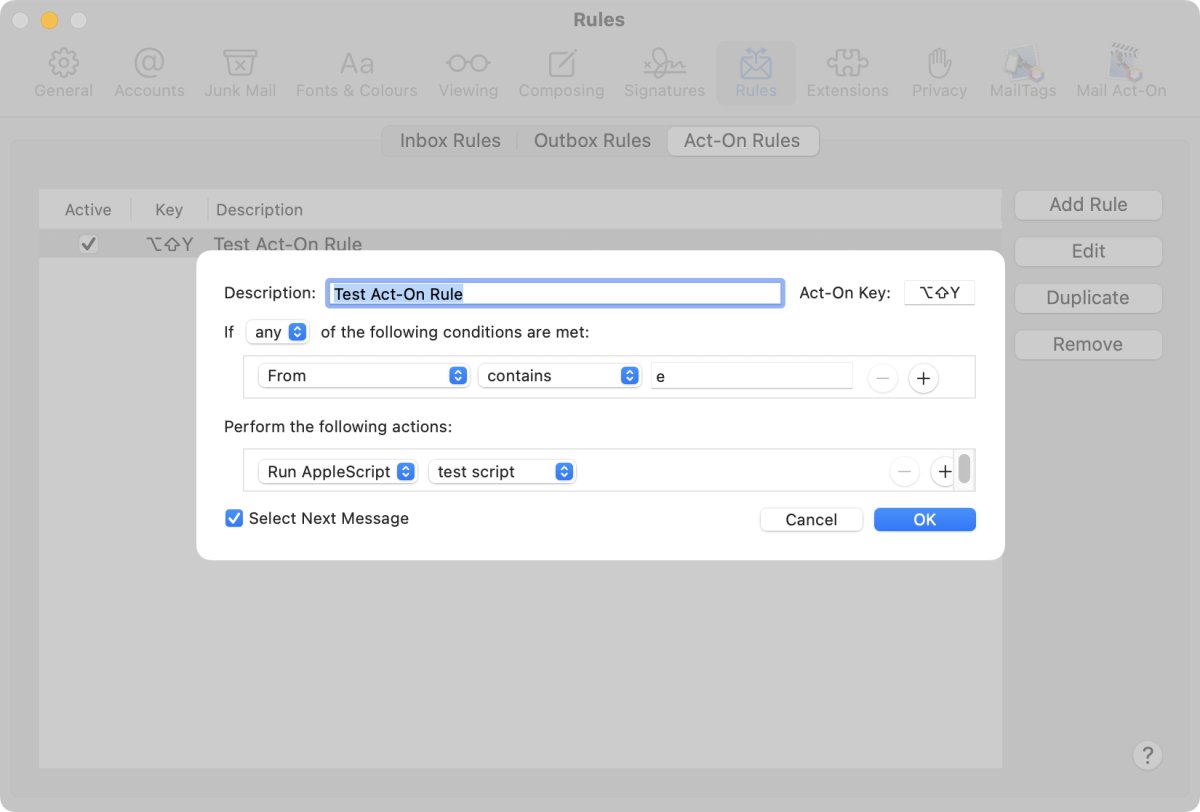
I selected "Run AppleScript" and then my test script.
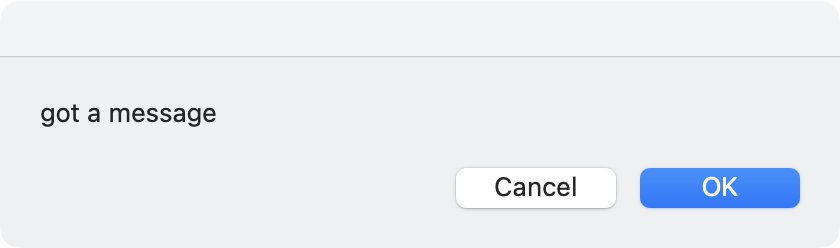
The result looks good:
Changing the original script to the
Now comes the tricky part: I need to adapt the original script to the new one. The original script sets a folder, gets the selection and then does a loop over the selected emails to save the attachments.
For the new script I still need to set the folder. The selection is given by the incoming new emails. The loop over the emails stays the same.
Therefore, I only need to add the beginning of the "save attachments" script to the new one. Then I need to place all the code from the main repeat loop into the repeat loop for "on perform mail action with messages". That is all!
Here is the new script:
--set main folder of attachments
set attachmentsPath to "/Users/beatrixwillius/Documents/"
try
set attachmentsFolder to (attachmentsPath as POSIX file) as alias
on error errMsg number errNr
display dialog "Please select a folder for saving the attachments! Error: " & errMsg & " Nr.: " & errNr
return
end try
if not my isdirectory(attachmentsPath) then
display dialog "Please select a folder for saving the attachments!"
return
end if
using terms from application "Mail"
on perform mail action with messages theMessages for rule theRule
repeat with theMessage in theMessages
try
--do only something if the message has attachments
set theAttachments to theMessage's mail attachments
if (count of theAttachments) > 0 then
set theSubject to subject of theMessage
set Originator to sender of theMessage
tell application "Finder"
set FolderName to Originator & " " & theSubject
try
set newFolder to (make new folder at attachmentsFolder with properties {name:FolderName})
on error errMsg number errNr
if errNr = -48 then
--folder already exists
set newFolder to get item 1 of (every folder in attachmentsFolder whose name contains FolderName)
else
display dialog "Error: " & errMsg & " Nr.: " & errNr
return
end if
end try
end tell
--save the attachments
repeat with theAttachment in theAttachments
set originalName to name of theAttachment
set savePath to (newFolder as rich text) & originalName
save theAttachment in file savePath
end repeat
end if
on error errMsg number errNr
display dialog "Error: " & errMsg & " Nr.: " & errNr
end try
end repeat
end perform mail action with messages
end using terms from
--check if the path is a directory and is actually there
on isdirectory(someItem) -- someItem is a file reference
set filePosixPath to quoted form of (POSIX path of someItem)
set fileType to (do shell script "file -b " & filePosixPath)
if fileType ends with "directory" then return true
return false
end isdirectory
Verdict
Once I knew how to use AppleScript for incoming emails it was easy to adapt the existing script to the new version. Don't forget to use a real rule and not a Mail Act-On one when you want to use the script in production. In this case I would also make sure to have a unique name for the folder of the attachments. This could be done with the received date.
I had some problems getting the test script to work. I had to edit the filter multiple times. At some point I noticed that the operator field of the filter was getting more narrow with each edit: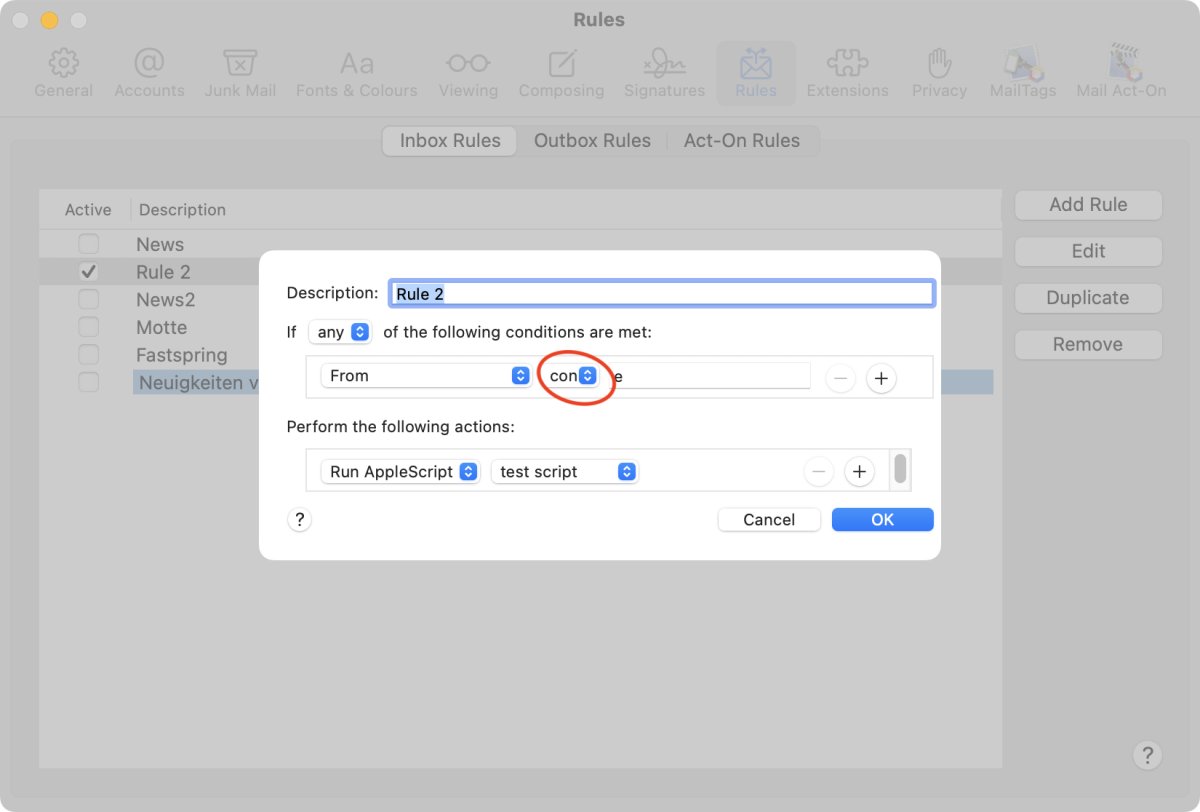
This is the latest and greatest version of Ventura! I had to restart Mail to be able to see the operator field again.