


Messages conversations are often not just text. They collect photos, screenshots, videos, PDFs, voice messages, links, and other files.
If you need one photo from a recent conversation, Apple’s Messages app is usually enough. Open the conversation, find the photo, and save it.
If you need all attachments from a long conversation, or all files that match a search such as heic, the job changes. You are no longer saving one picture. You are trying to collect a set of files without missing the important ones.
The short answer
Use Messages when you need one visible attachment and can drag it out of the conversation.
Use MAX Messages when you want to export all attachments from the current conversation or from the current search result.
What Apple Messages gives you
In the Messages app on Mac, you can open a conversation and work with the attachments inside the message thread.
For a single image, the path is direct. You can drag the image from the conversation to the Desktop or another Finder folder.
Screenshot 1: Apple Messages showing individual images and an image group inside a conversation
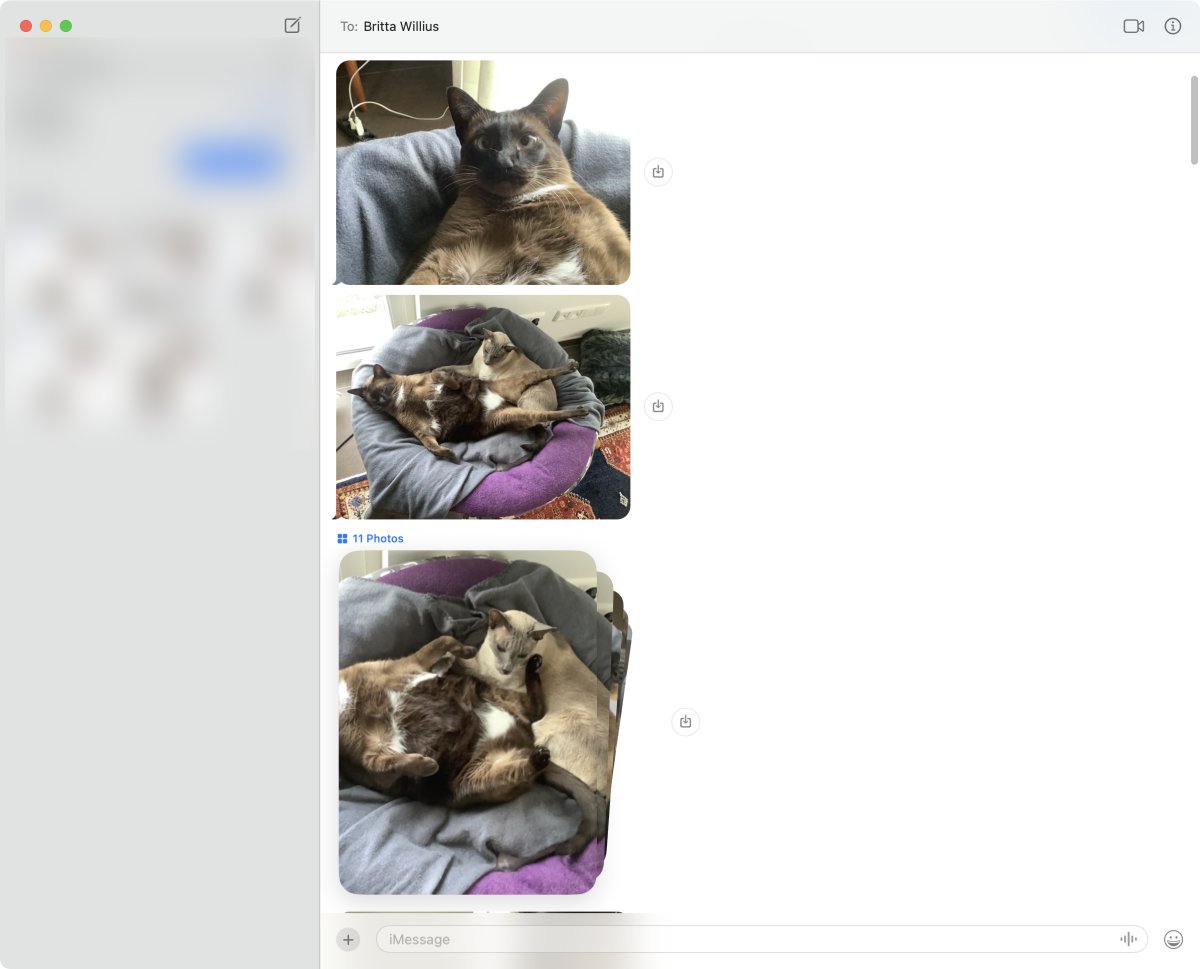
When several images are sent together, Messages can show a link such as 11 Photos. Clicking that opens a separate view with the images shown as a grid. From there, you can select images, drag them to the Desktop, or use the context menu for actions such as opening, copying, forwarding, adding to Photos, or deleting.
Non-image attachments behave differently. A PDF or other file is normally shown as its own message attachment, not as part of a photo grid.
Screenshot 2: Apple Messages showing the attachment grid and context menu for selected images
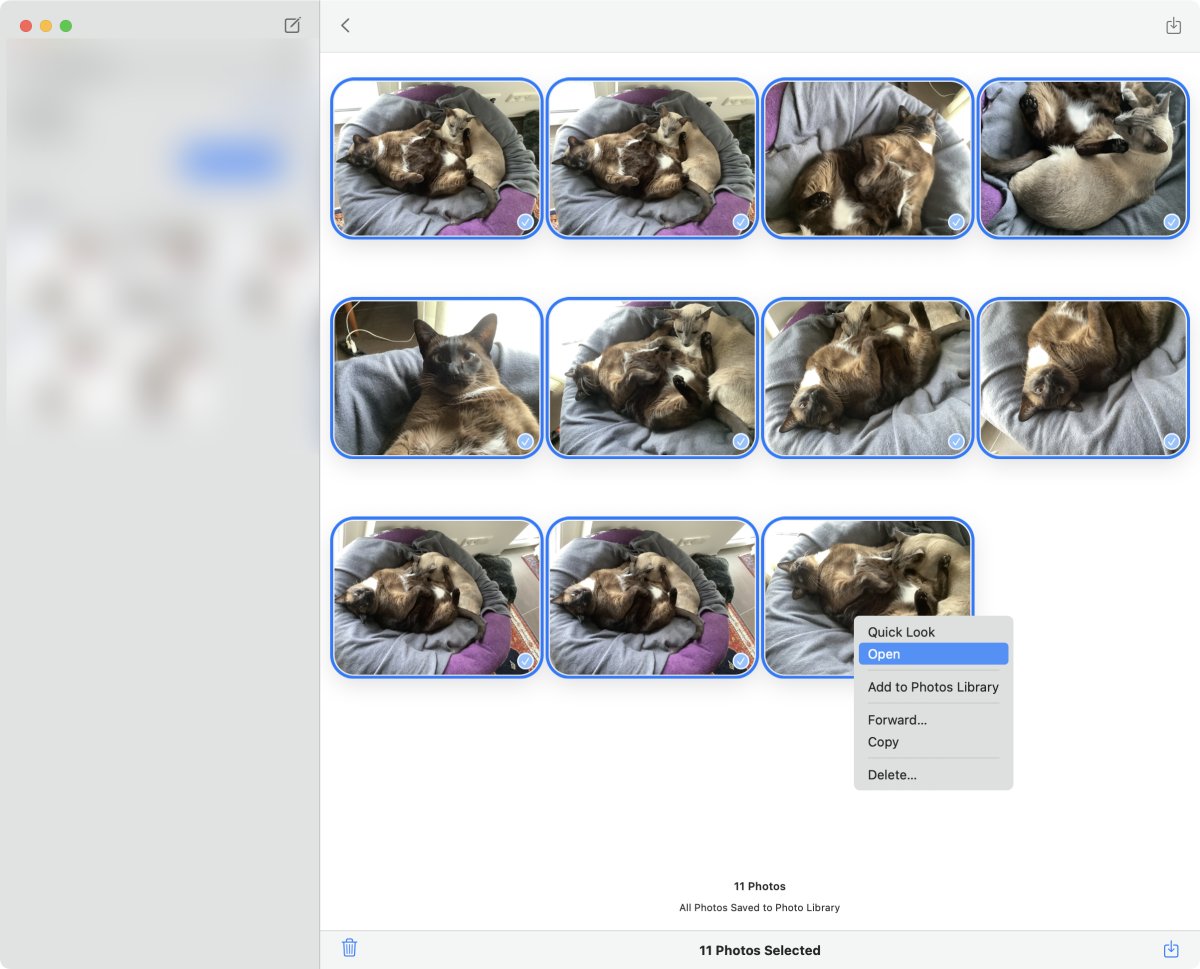
That is usable for a small job. It is still a manual workflow. You have to open the attachment group, select the files, move or copy them, and then check what arrived in Finder.
It can also be fragile. In my test, the same workflow behaved differently on two Macs. The iMac handled the attachment grid. On my MacBook Air, Messages took about a minute to reach the image-selection screen and then stopped responding. That is one test, not a claim about every Mac, but it is the kind of friction that matters when the job is to export many attachments.
Why a PDF is not always enough
A PDF can be a good export when you need a readable document of the conversation. I covered that separately in How to export Messages conversations to PDF on Mac.
MAX Messages can also export attachments when creating a PDF. In that case, the attachment files are saved into an attachment folder beside the PDF.
That is useful when the PDF export is the job. But it is not always the best way to organize attachments, because the files are grouped around the PDF export rather than around the search or file set you are trying to collect.
If someone sent you photos, screenshots, PDFs, or other documents, you may need those files as files. A photo shown inside a PDF is not the same thing as the original HEIC or JPEG image saved in Finder.
So before exporting, decide what you need:
- a readable copy of the conversation,
- the original attachments as separate files,
- or both.
Exporting attachments with MAX Messages
MAX Messages can export all attachments from the current conversation or from the current search result.
That makes the attachment job much simpler. You do not have to save every matching photo one by one from Messages.
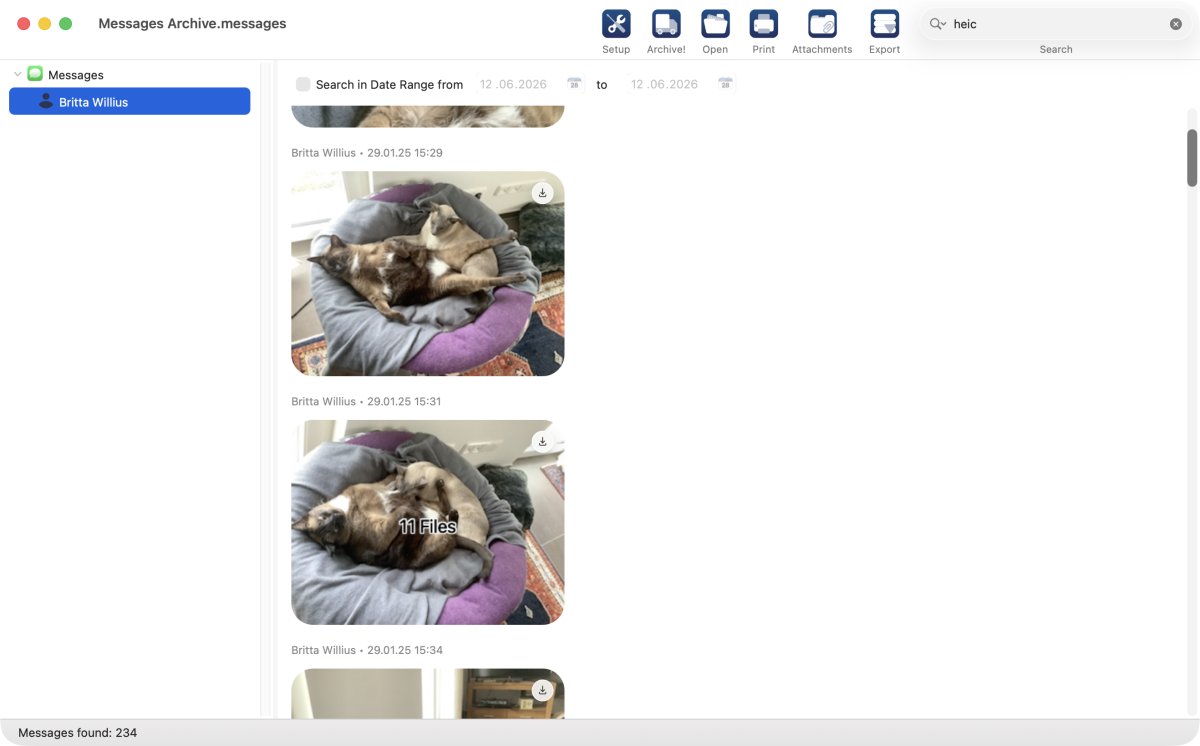
For example, if you want to export HEIC images from an archived conversation, the process is:
- Open the archive in MAX Messages.
- Search for
heic. - Click Attachments.
- Select the folder where the attachments should be saved.
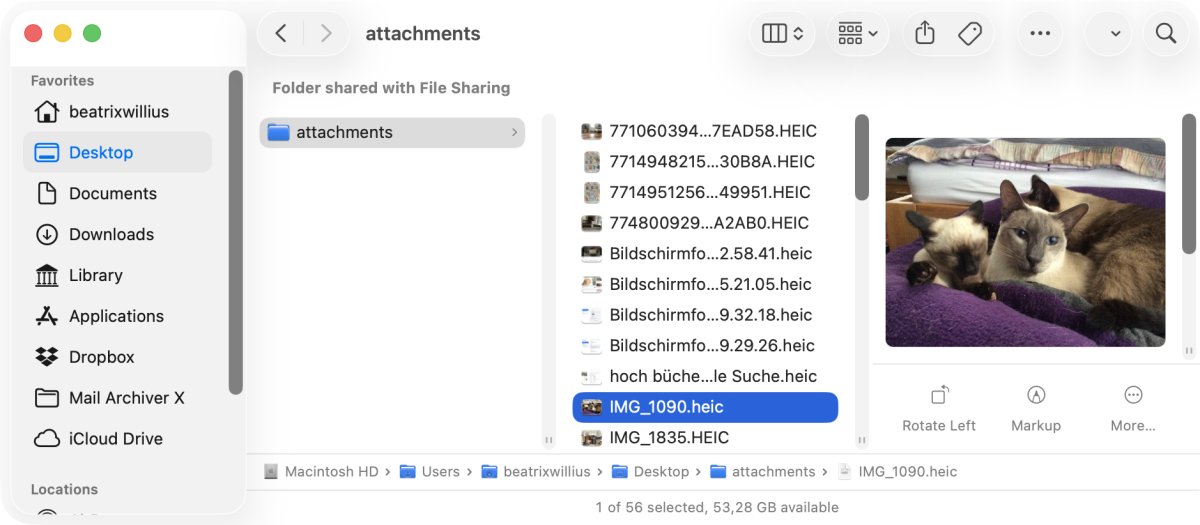
- Open the folder in Finder and check the exported files.
Screenshot 3: MAX Messages showing a search for heic in an archived conversation
Screenshot 4: Finder showing the exported HEIC attachments in the selected folder
Conversation export or search result export?
The important detail is the current selection.
If you are looking at one conversation, the attachment export applies to that conversation. That is the right choice when you want the files exchanged with one person or group.
If you search first, the attachment export applies to the current search result. That is useful when you want a narrower set, such as HEIC photos, a word that appears near the files you need, or a date-limited result.
This is where MAX Messages is different from manually browsing the attachment view in Messages. The search can define the set of files first. Then the attachment export saves that set to a folder.
When Apple Messages is enough
Use Apple Messages directly when the job is small and visible.
If you need one recent photo, there is no reason to turn it into a larger archive project. Open the conversation, drag the image to the Desktop, and check it in Finder.
Messages is also useful when you are still deciding which item you need. You can browse the conversation, open an attachment group, and look at the attached photos before saving anything.
When MAX Messages makes more sense
Use MAX Messages when the attachment export itself is the work.
That includes long conversations, repeated exports, conversations with many photos, or searches where you want all matching attachments. A search for heic is a good example: you are asking for a group of image files, not one visible picture.
MAX Messages also makes sense when you need to inspect the message history around the attachments. You can archive, search, check the conversation, and then export the files you need.
If you create a PDF in MAX Messages and choose to export attachments with it, the attachment files are saved with that PDF export. Use the separate attachment export when the job is more about collecting or organizing attachment files directly, for example all HEIC images from the current search result.
Check the exported files
After exporting attachments, open the destination folder in Finder.
Check that the files are there. Open a few important ones. If you searched for heic, confirm that HEIC files were exported. If the conversation has important photos or documents, do not stop at the fact that the export finished.
The point of exporting attachments is not just to create a folder. The point is to have files you can still find and open afterwards.
The practical conclusion
Apple Messages is fine for saving one visible image, and it can handle small attachment groups when the attachment view behaves well.
MAX Messages is better when you need a set of attachments: all attachments from a conversation, or all attachments from a search result such as heic. Search, click Attachments, select a folder, and then check the files in Finder.
Related articles: