


If you need to save a short Messages conversation, the Mac can usually cope. You can see the messages, use the Print command, or copy the part you need.
Years of one conversation are different. The tedious part is getting back through the conversation before you can save anything.
The problem is the long scroll
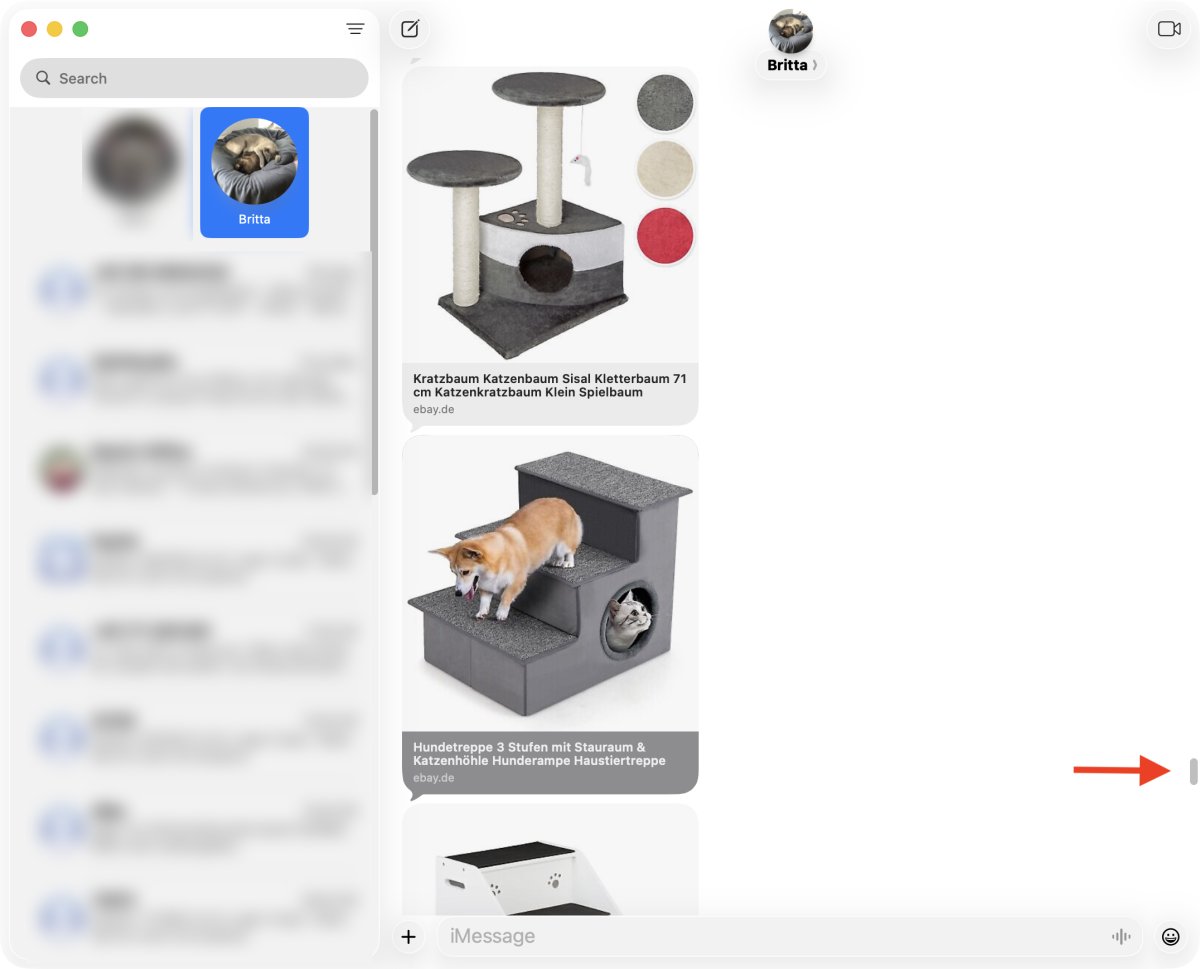
Messages on the Mac does not show every old message in a long conversation at once. When you scroll up, older messages are loaded as needed.
In my test, after scrolling up a bit, about 80 more messages appeared. The scrollbar changed because the conversation had become longer. Messages had added more content above the part I was looking at.
That is fine when you are looking for something recent. It becomes annoying when you need a conversation from years ago. You scroll, wait, check the date, scroll again, and hope you are moving toward the right part of the thread.
Screenshot 1: Messages after older content has loaded during upward scrolling
There is no clear export boundary
When a conversation has years of history, you need to know where your export starts and where it ends.
That is harder than it sounds. The visible part of Messages is not automatically the whole conversation. If older messages are still loading while you scroll, your position in the thread is not a clear boundary.
You may think you are saving the whole conversation, but you still need to check:
- whether the beginning is far enough back,
- whether the end is where you expected,
- whether important pictures or other attachments are included.
Attachments make the job slower
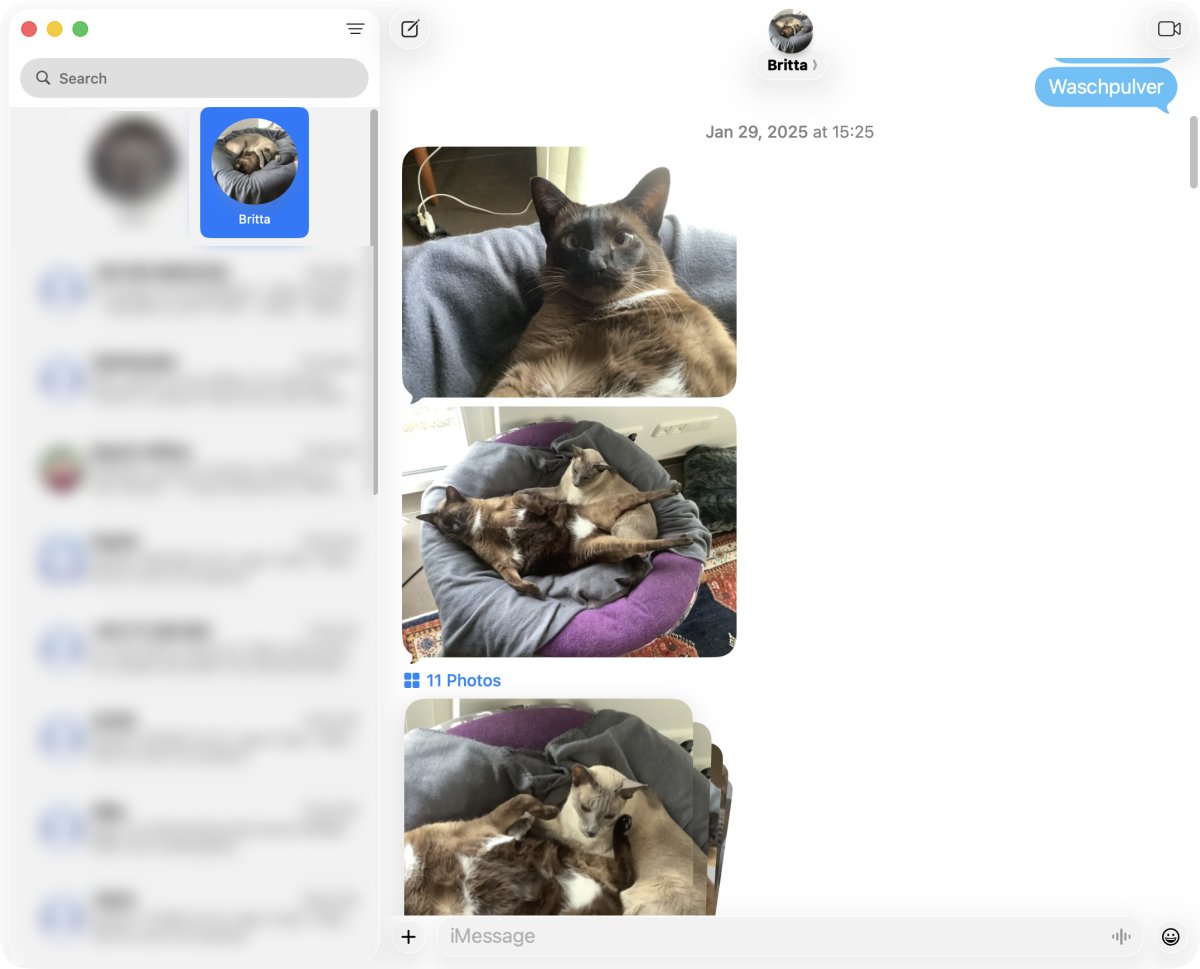
Long Messages conversations are rarely just text. They often include photos, videos, links, voice messages, reactions, and shared files.
That makes checking more important. Saving the message bubbles is not enough if the important part of the conversation was a photo, a document, or a screenshot someone sent years ago.
Screenshot 2: A long Messages conversation with mixed text and attachments
Printing can work for short conversations
The built-in Mac answer is to print the conversation and save the print job as a PDF. For a short conversation, that can be acceptable.
For years of messages, printing becomes part of the tedious work. You still have to scroll back far enough, wait for Messages to load older history, create the PDF, and check the result.
This article is not about the best PDF method. If your main question is PDF export, see the related article: How to export Messages conversations to PDF on Mac.
If you want to avoid the tedious work
If you do not want to spend your time scrolling through years of Messages history, use MAX Messages.
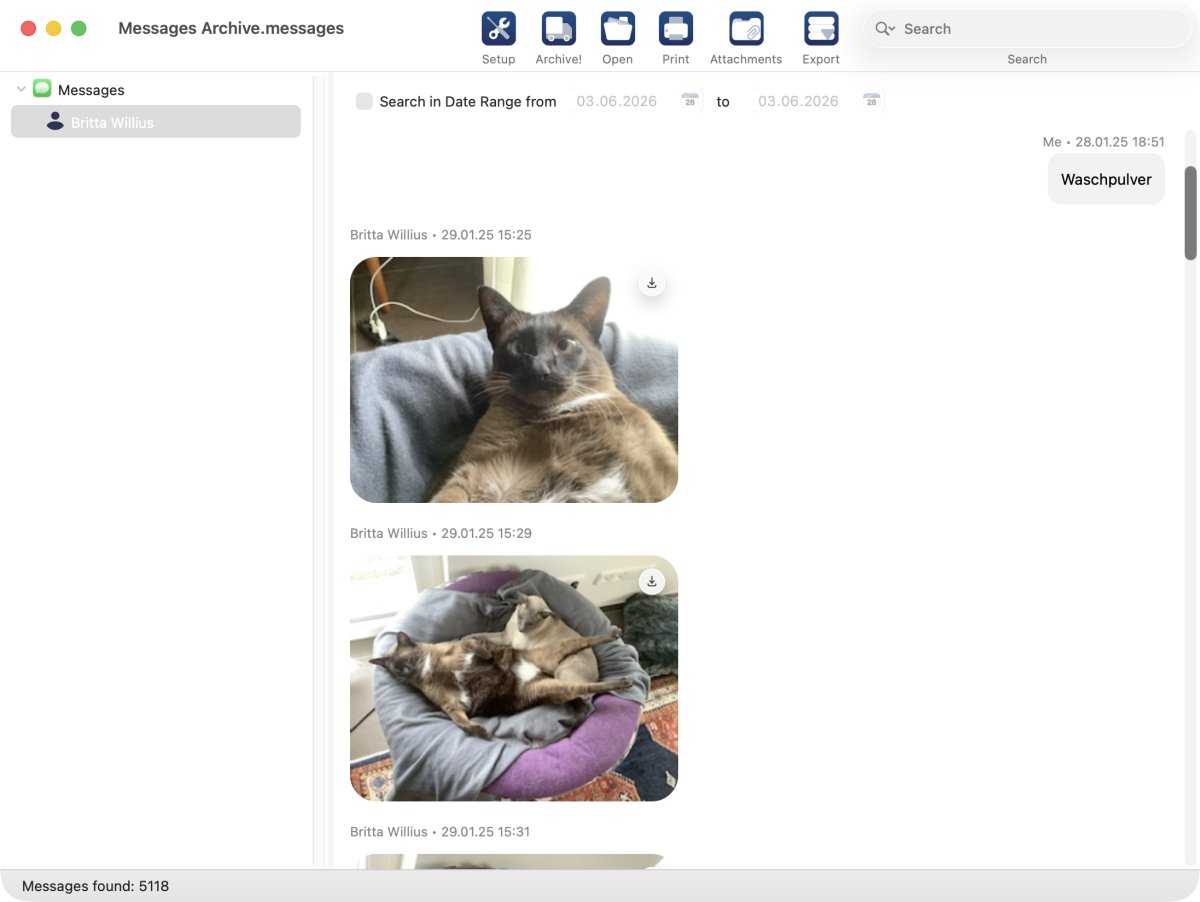
MAX Messages is made for archiving Messages conversations, so you do not have to drive the job by manually scrolling through the Messages window. That is the main reason to use it for a long conversation.
For a short conversation, the built-in Mac tools may be enough. For years of one conversation, the manual work is the problem.
Screenshot 3: MAX Messages showing the archived long conversation
Before you save the conversation
Decide what you actually need.
Do you need the whole conversation, or only a date range? Do you need attachments? Do you need a PDF, or do you need to search the conversation later?
Those questions matter because "I exported something" is not the same as "I saved the part I needed."
The practical conclusion
Exporting years of one Messages conversation is tedious because Messages is built for reading a conversation, not for walking back through years of history and saving a clean archive.
If the conversation is short, use the simple Mac method. If the conversation is long and you want to avoid the scrolling, waiting, and checking work, use MAX Messages.