


If your end result must be a PDF, you have two basic choices on a Mac: print from Messages, or create the PDF with an export tool. The right choice depends on what you expect from the PDF. Do you need a quick copy of a few messages, or a document you can keep with other records?
What a PDF is good for
PDF is useful when you need a fixed document. You can send it to someone, store it with project files, print it, or keep it with other records.
PDF is less useful when you still need to work with the conversation. A PDF is a document. It is not the same thing as a searchable Messages archive. So before you start, decide whether you need a PDF as the final document or whether you first need an archive you can inspect.
Method 1: print from Messages to PDF
For a short conversation, the built-in Mac method may be enough. Open Messages, select the conversation, choose Print, and use the PDF option in the print dialog. This creates a PDF from the conversation view that Messages prepares for printing.
This works best when the conversation is short and you can check the finished PDF quickly.
Screenshot 1: Messages Print command and macOS PDF option
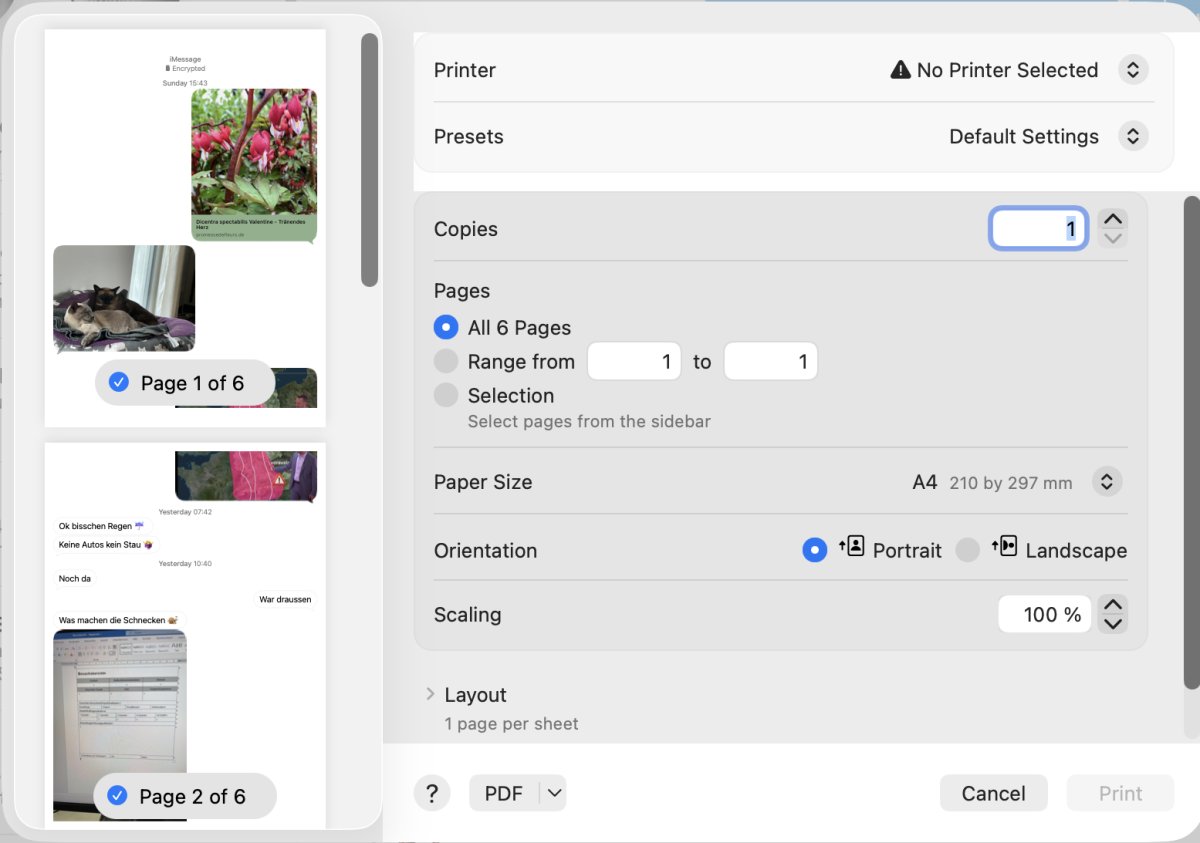
Check the PDF before relying on it
Do not stop when the PDF file appears. Open it. Check the first page and the last page. Look at page breaks near long messages. Look at pages with pictures. If the conversation has important attachments, make sure they are visible or exported in the way you expected.
A PDF file on disk is only useful if the content inside it is readable.
Creating the PDF can be slow
Printing from Messages to PDF happens in two parts. First, Messages prepares the print job and shows the print dialog. Then macOS creates the PDF.
In my tests with a few hundred messages, that wait was noticeable. On one computer, the PDF took about 40 seconds to create. On another computer, the same kind of job took about 2 minutes. The exact time depends on the Mac and the conversation, but it is not instant.
This matters because every failed attempt costs time. If the PDF has the wrong range, cut-off text, or badly printed attachments, you go back to Messages and repeat the process.
What to watch for in the PDF
Messages is built for reading conversations on screen. Its printed PDF can look different from what you saw in the app.
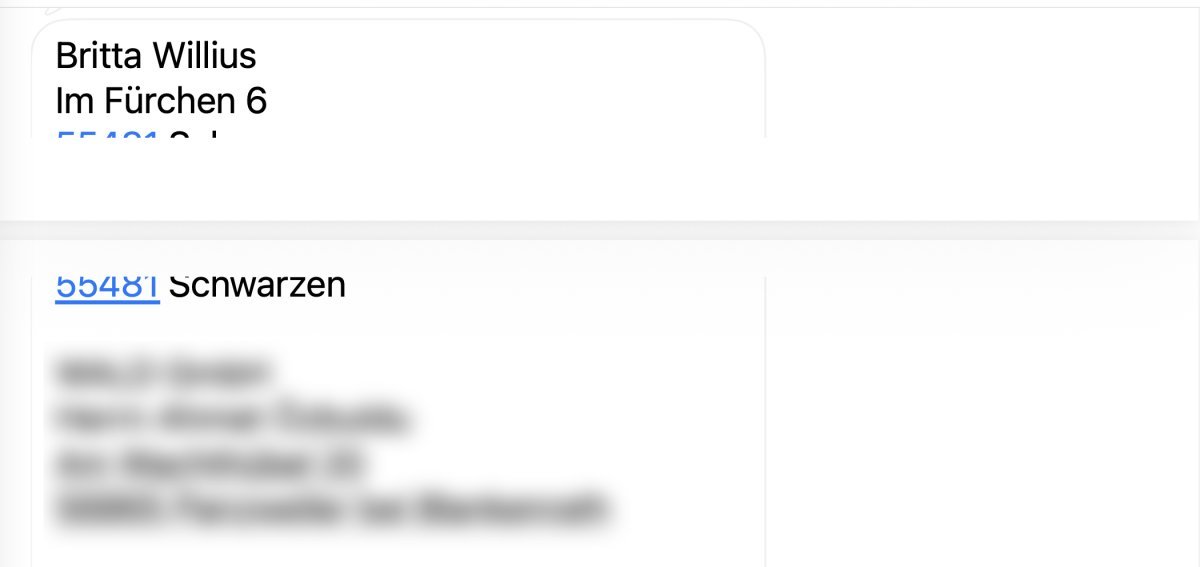
In my test, the printed PDF had layout problems. Some text was cut off. Some pictures were cut off. Groups of photos were printed as large grey photo-stack boxes, with the actual pictures appearing separately below or on the next page.
That may not matter for a quick reference copy. It matters if the PDF is supposed to be the copy you keep.
Screenshot 2: Text cut off in a Messages print-to-PDF result
Screenshot 3: Poor printed photo-stack result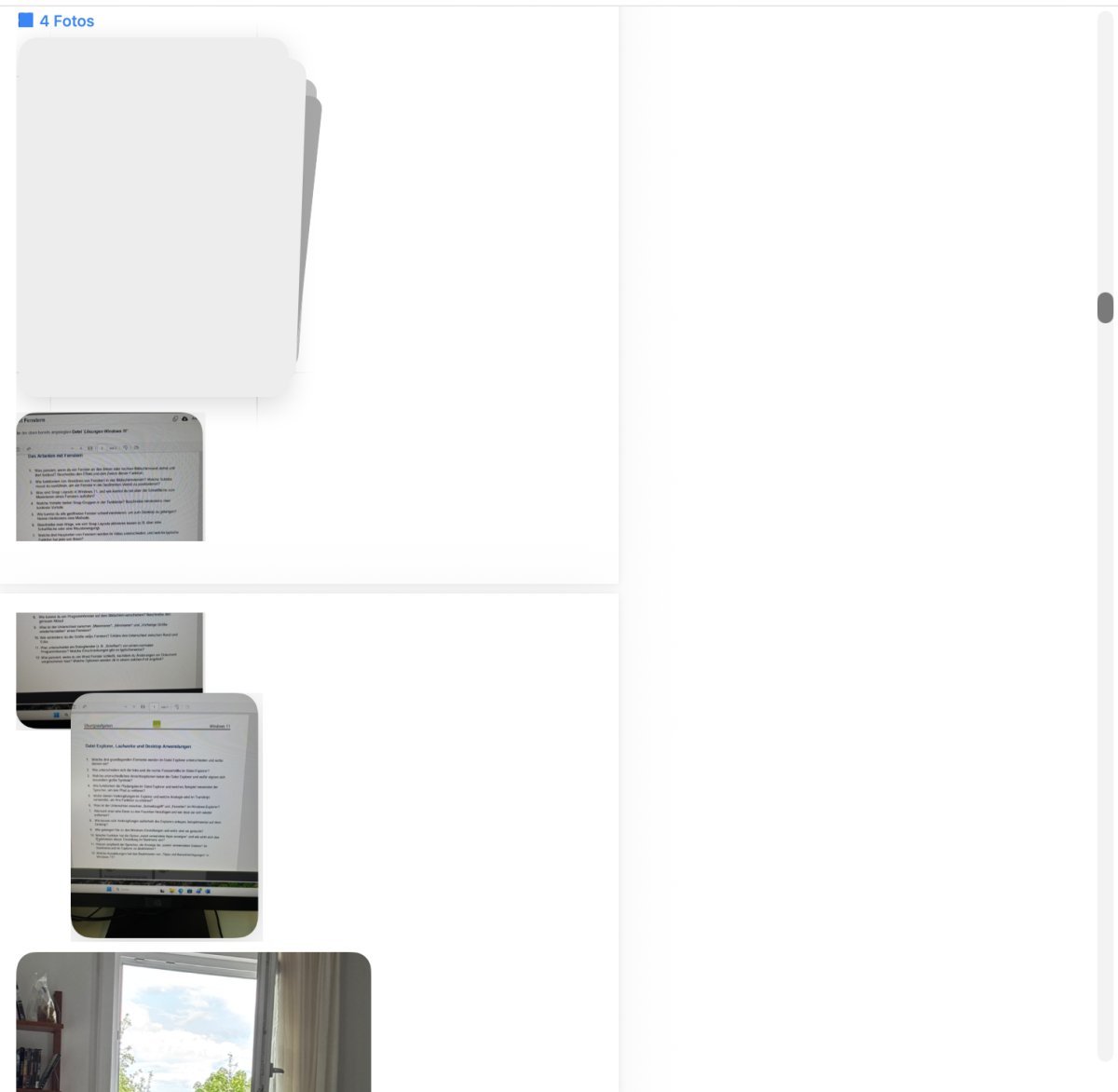
Method 2: export directly to PDF with MAX Messages
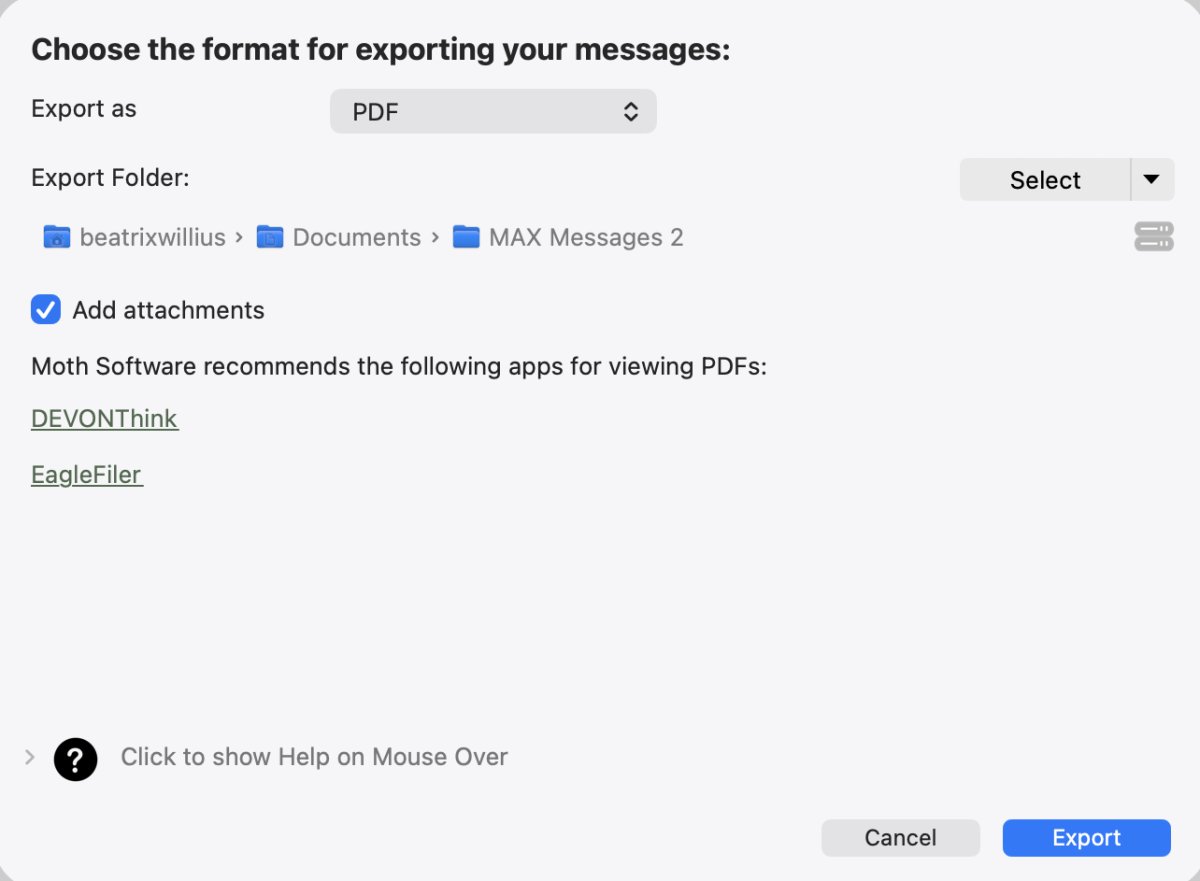
MAX Messages can archive a Messages conversation directly to PDF. This is the simplest MAX Messages route when you already know that PDF is the final result. Use this when the PDF itself is the thing you need: a project file, a handoff, a family record, or a document to store with other material.
The same checking rule still applies. Open the PDF afterwards. Confirm the start and end. Look at messages with pictures or other attachments.
Screenshot 4: MAX Messages direct PDF export settings
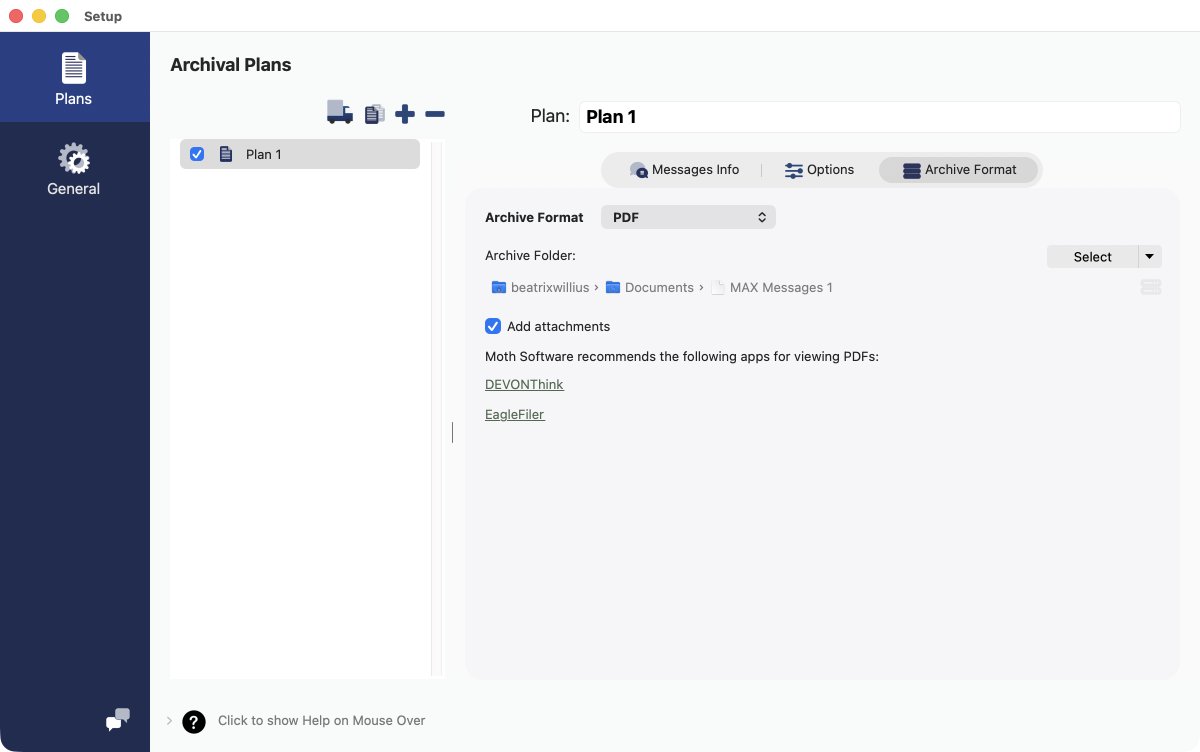
Method 3: archive first, then export a PDF
If you are not sure the PDF is enough, archive first. Archive the conversation into MAX Messages first. Check the conversation there. Then export the PDF.
This gives you a searchable archive for checking and a fixed PDF for sharing or storage. The order matters because you can inspect the archive before treating the PDF as finished.
Screenshot 5: Settings for export to PDF
Which PDF method should you use?
Use Messages print-to-PDF for a short conversation that you can check quickly. Use MAX Messages direct PDF export when the PDF is the final result and you want to avoid the Messages print workflow.
Archive first and export the PDF later when the conversation is important, has attachments, or may need to be searched again. For the detailed comparison, see: MAX Messages vs printing a Messages conversation to PDF on Mac.
Back up the result
After you create the PDF, keep it somewhere sensible and back it up. A PDF on one disk is still only one copy. If the conversation matters enough to export, the result matters enough to protect.
The practical conclusion
PDF is a useful Messages export format. It is best when you need a fixed document. For a quick copy, printing from Messages may be enough. For a PDF you want to keep, check the result carefully. If you may need to search the messages later, archive first and create the PDF afterwards.
Related article: How to export years of one Messages conversation on Mac.