


Earlier this year, one of our cats was very sick. My sister paid the entire veterinary bill.
Later, I needed to find our messages about the payment so I could transfer half the amount back to her. I knew which conversation it was in and roughly when we had discussed it. But I could not remember whether we had written about the cat, the vet, the doctor, or simply the amount.
A keyword search was little help. I eventually scrolled back through the conversation until I found the message.
This is a common problem with Messages. Individual messages are short, and the words you remember may not be the words you used.
Contents
Why searching Messages is different from searching email
When I search email, I usually remember a longer piece of text. An email may also have a useful subject. That gives the search more to work with.
Messages are shorter. A conversation about a veterinary bill may contain only:
How much was it?
I paid the full amount.
I’ll send you half.
None of those messages has to contain “cat” or “vet”. Searching for the topic I remember may therefore find nothing.
In that situation, the contact and an approximate date are better clues than a keyword.
Search in Apple Messages
Apple Messages uses the left sidebar for both suggestions and search results. Even before I type anything, it shows people and shared content such as links, photos, and locations. To me, this makes the search feel more like a content browser than a straightforward search field.
[Screenshot 1: Apple Messages before showing search results]
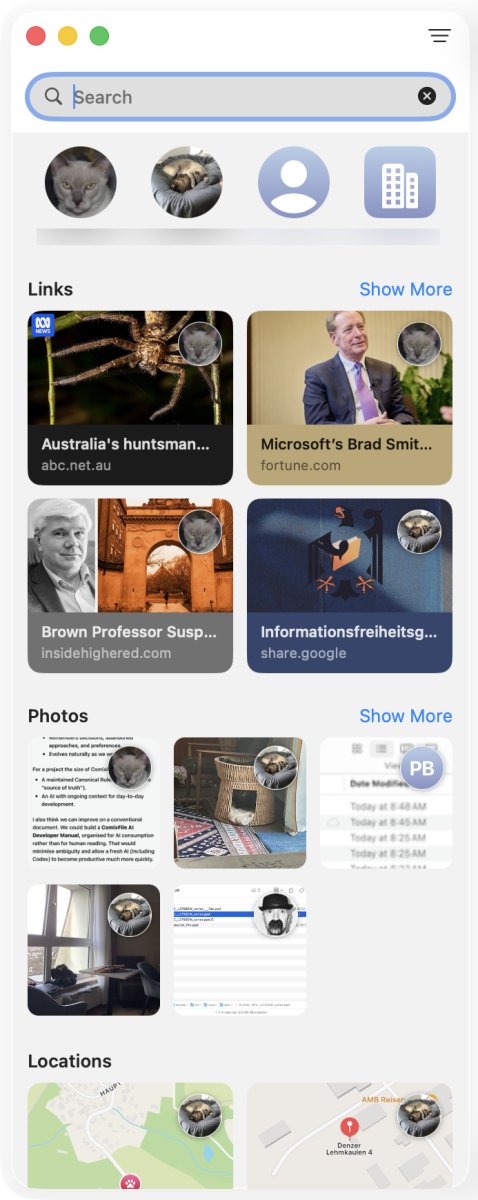
Once I enter a search term, the results are grouped by content type. Matching messages are shown as previews, with the newest results first. Clicking one takes me directly to the relevant place in the conversation.
[Screenshot 2: Apple Messages: result of text search]
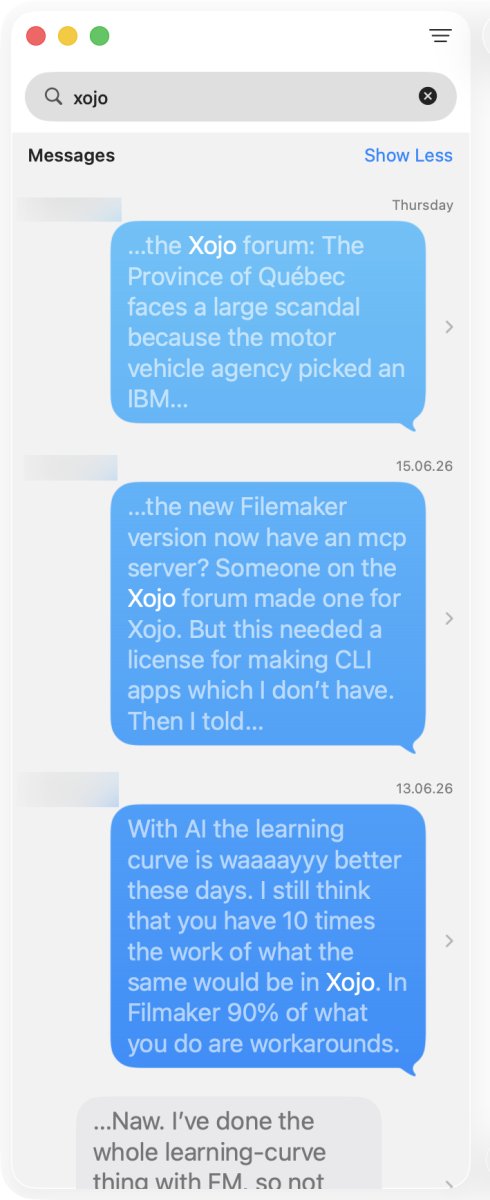
The search also goes well beyond message text. A search for “cat”, for example, found links about cats and images containing cats. It can search text visible inside screenshots and other images. Apple also uses related concepts instead of requiring an exact word match, which explains why some results can feel rather vague or unrelated.
[Screenshot 3: Apple Messages: result images of a search for "cat"]
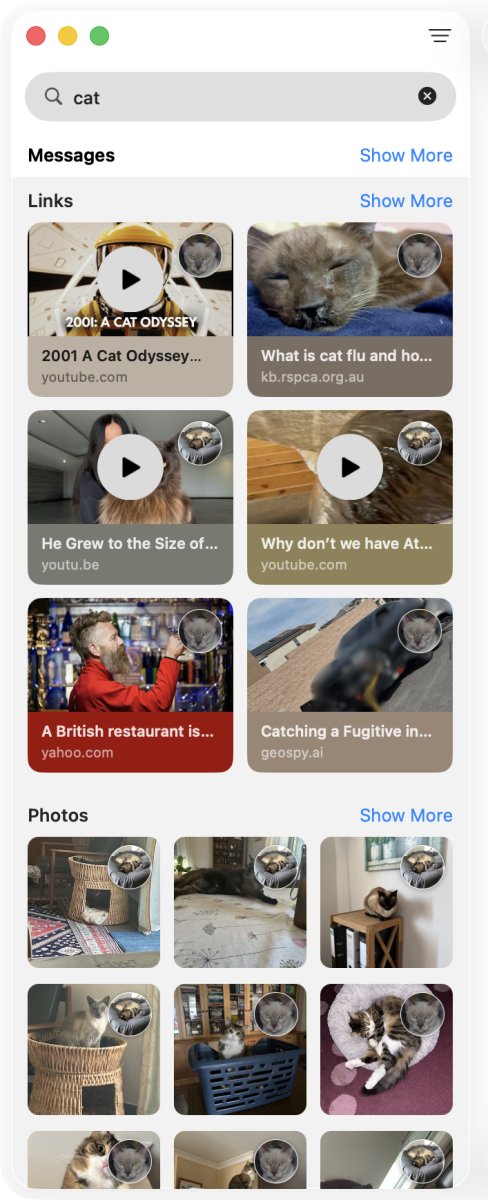
Image results are shown in a Photos section and can be filtered between Photos and Screenshots. I am still not entirely convinced the distinction is especially useful. It appears to be based on Apple’s classification of the image rather than its content. A screenshot containing a cat can therefore match “cat”, while screenshots containing Mail Archiver text can match “mail archiver”. In my test, both searches also produced a few images where the connection to the search term was not obvious.
[Screenshot 4: Apple Messages: search result of a search for "mail archiver"]
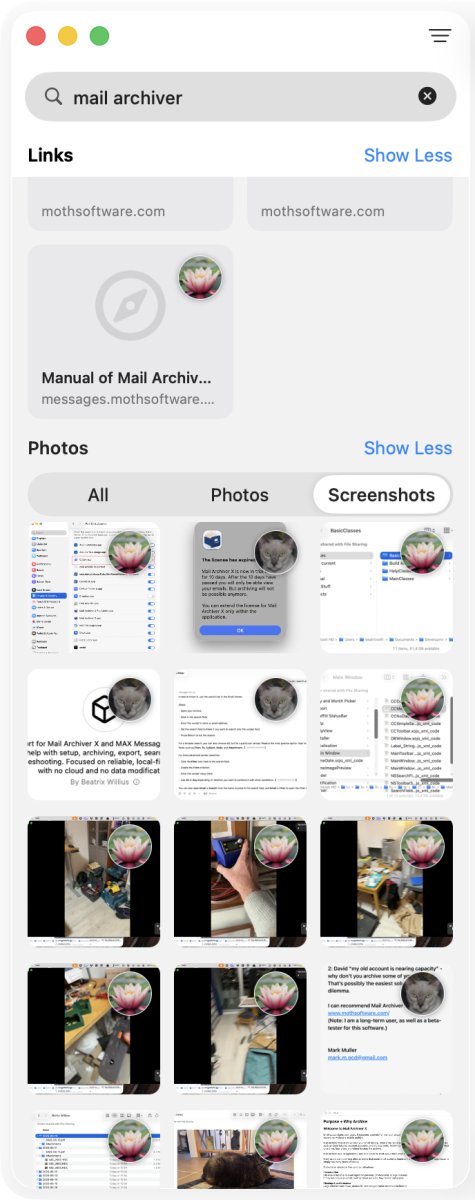
Search can be narrowed by people and content types. Current versions of Messages also support more natural search phrases. Overall, Apple Messages puts message text, text and objects found in images, related terms, and content filters into one search interface. Apple describes the current options in Search for a conversation in Messages on Mac.
Start with the clues you still remember
If you remember the contact but not the wording, start with that conversation. Then think about the date.
You may not know the exact day. Knowing that something happened near the beginning of the year can still reduce several years of messages to a manageable period.
For the cat example, my useful clues were:
- the conversation was with my sister,
- the cat was ill near the beginning of the year,
- the exchange concerned an amount of money.
The words “cat”, “vet”, or “doctor” were only guesses. Selecting my sister’s conversation and limiting the date range would have been more reliable than trying one guessed word after another.
Search an archive in MAX Messages
MAX Messages searches the conversations already stored in its local archive. First select the conversation. You can then enter a search term, restrict the search to a date range, and choose where MAX Messages should look.
The search menu has three choices:
- Message searches message text.
- Attachments searches attachments.
- All searches both.
[Screenshot 5: MAX Messages search field with Message, Attachments, and All options]

[Screenshot 6: MAX Messages date-range search]

If I had used the archive for the cat conversation, I could have selected my sister, set a date range around the beginning of the year, and searched the much smaller result. I would still need to recognise the right exchange, but I would no longer have to scroll through the whole conversation.
The attachment option is useful for a different kind of memory: you remember receiving a photo or document but not what was written with it. Searching messages and attachments separately avoids mixing the two jobs unless you want both.
A more sophisticated search is not always more useful
Apple Messages has the more sophisticated search. It searches message text, recognises text and objects in images, understands related terms, and groups results by content type. MAX Messages is much simpler. It searches messages, attachments, or both, with an optional date range.
But sophistication still has to produce a better result. I did not really see that in this test. Apple Messages found more kinds of matches, including some whose connection to my search was unclear. It still did not let me limit the results to the period when the cat was ill.
That missing date range was the bigger problem. I knew the contact and approximately when the conversation happened. MAX Messages could use both facts directly. Its search is simpler, but for this job the result was not worse. The date range made it easier to get to the small part of the conversation I needed.
When Apple Messages search is enough
Apple Messages search is often enough when you remember a distinctive word, a person, or something shown in an image. It is especially good at bringing different types of shared content together. Clicking a result also opens the conversation at the matching place.
Its broad matching can be less helpful when the word is uncertain. Results based on objects in images and related concepts add possibilities, but they can also add results whose connection is not obvious.
When a searchable Messages archive is more useful
A MAX Messages archive is useful when a conversation covers several years, you know the contact and approximate period, or you want to keep searching the history independently of the live Messages library.
It is also useful when you want a date range to be an explicit part of the search, or when you need to choose between message text and attachments.
MAX Messages can search only messages that were available when the archive was created. It cannot recover a message that had already been deleted or was no longer present on the Mac. Archive important conversations while they are still available, and include the archive in the Mac’s regular backup.
For more about the difference between the live Messages library and a separate copy, see Messages in iCloud is sync, not an independent archive.
Try MAX Messages
Use MAX Messages to archive, search, and export Messages conversations on your Mac.