


iMazing and MAX Messages overlap in one place: both can help you get iPhone or iMessage conversations out of Apple's normal Messages view.
That does not make them the same kind of app. iMazing is a broad iPhone and iPad management tool. It handles backups, transfers, photos, music, WhatsApp, call history, voicemail, notes, apps, and more. MAX Messages does only a fraction of that. It archives messages from the Mac Messages database, lets you search them, and exports them when you need a readable copy.
So this is not a "which app is better?" comparison. The better question is: do you need an iPhone manager, or do you need a message archive?
Connecting the iPhone was already part of the test
My first surprise was that I could not connect the iPhone from my MacBook Air. I had to use the iMac, where the connection worked without problems.
Screenshot 1: iMazing showing the connected iPhone and the available device sections
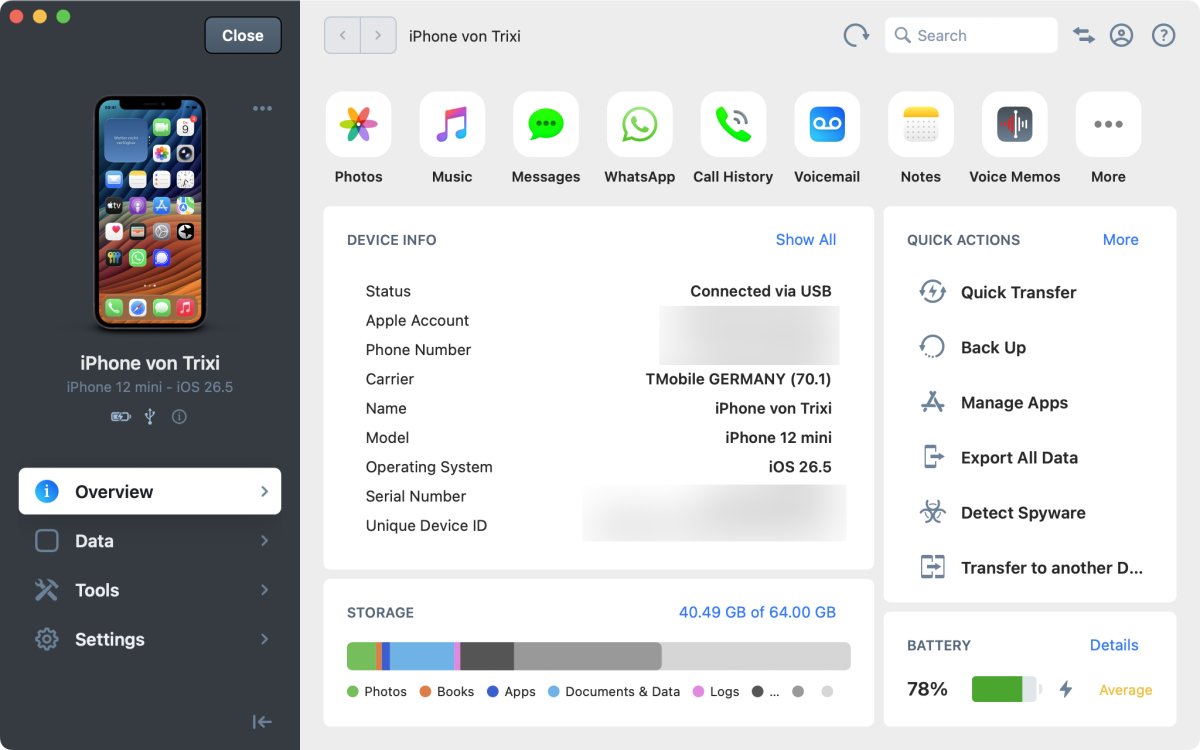
When I started iMazing another time to reload data it tried to connect with Wifi but this didn't work at all.
MAX Messages does not need the iPhone for its normal workflow. It reads the iMessage database on the Mac. The next version can also archive a copy of chat.db from anywhere on the computer. That is a narrower source list, but it avoids the whole "connect the iPhone and make a backup first" step.
The first iMazing choice needs a better explanation
When I opened Messages in iMazing, I had to choose between Data Access Only and Full Backup.
Screenshot 2: iMazing asking whether to use Data Access Only or Full Backup
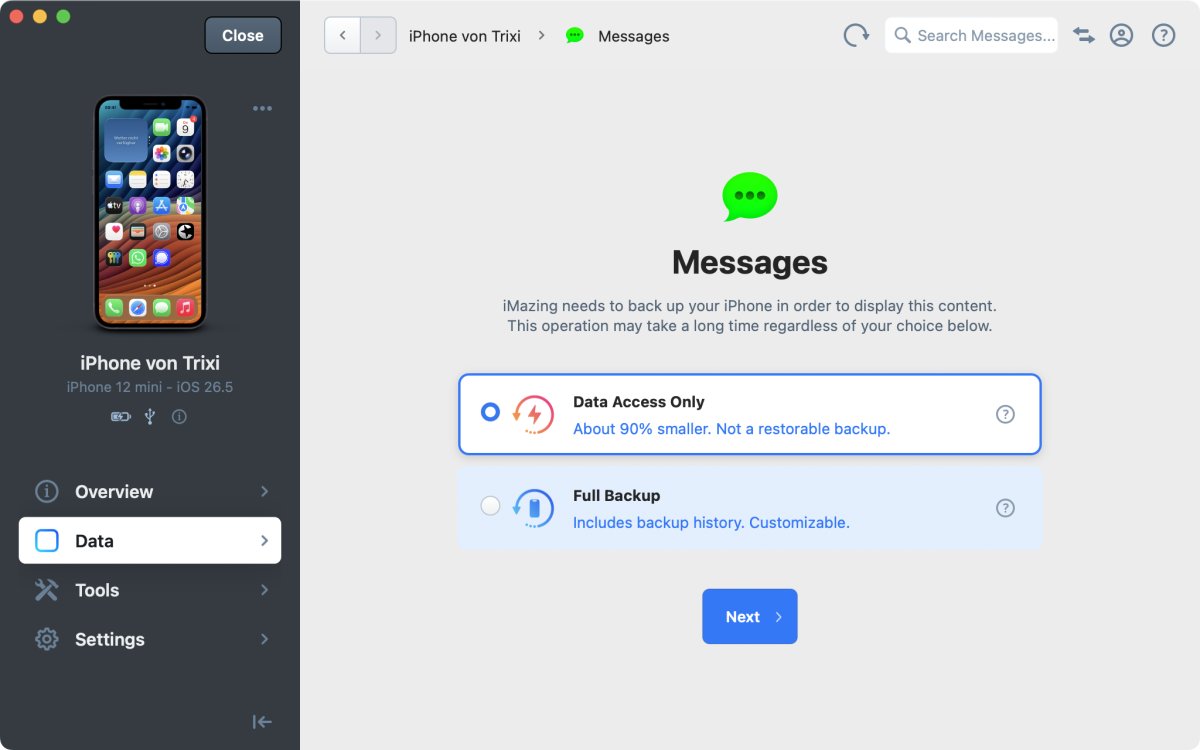
This is an important choice, and I had to stop and think about it. The short version is:
- Choose Data Access Only when you only want to inspect or export the messages currently on the iPhone.
- Choose Full Backup when you also want to preserve previous states of the message database through snapshots, or when you want a proper device backup.
The help text did not make this very clear. It also was not obvious whether I could change from one choice to the other later. As a user, this confused me.
After that, I had to trust the iPhone again. Then came the slow part: the data had to be copied to the hard disk. I do not have a huge message history or many attachments, and it still took about five minutes. At the second try accessing the data was faster.
This matters for users with large phones. If someone has 100 GB of data, they need enough free disk space and enough time. Even if they only want messages, iMazing still has to prepare access through the iPhone backup workflow.
Selecting what gets archived
iMazing prepares message access through the iPhone backup workflow. I could set a date range later for viewing or exporting messages, but I could not select individual chats or a date range before the data access step.
That makes sense for a general iPhone management app. The app first needs device data, and then the user decides what to inspect or export. For a message archive, the expectation is different. If I already know that I only want one chat, or only a specific date range, selecting that scope before archiving is more useful.
MAX Messages is built around that archive workflow, so choosing individual chats and date ranges belongs earlier in the process.
Messages look familiar in iMazing
Once the data was available, the messages looked much like they do in Apple Messages. That is good. There is no strange export-only view before you can inspect the content.
Screenshot 3: messages in iMazing
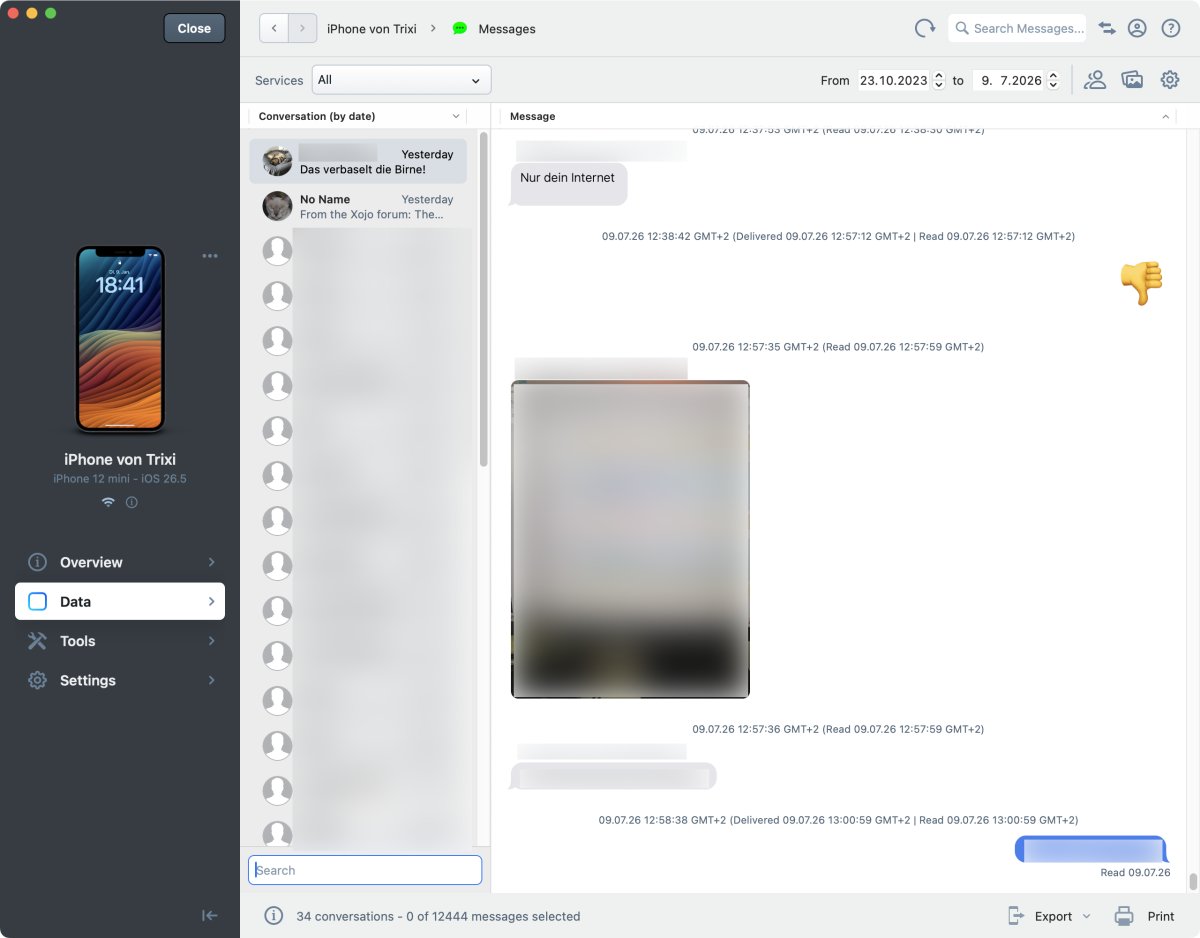
But iMazing loads the messages themselves all at once. Attachments are loaded dynamically when scrolling reaches them. That makes the scrolling simpler than Apple Messages and MAX Messages in one way: the scrollbar does not jump around as much, because the message list itself is already loaded.
The tradeoff is scale. I would not want to see what happens with a 20-year conversation. MAX Messages uses dynamic loading for messages and attachments, which is more complicated, but it is there for a reason.
Contact names are a problem
Another drawback: iMazing doesn't use the Mac Contacts app for chat names.
The Messages database stores phone numbers and email addresses. The friendly names usually come from Contacts. If an app does not resolve those contacts, conversations appear as "No Name". That is not a small detail when someone has hundreds or thousands of chats.
MAX Messages does use Contacts for names. For a message archive, that is important. A searchable archive is much less useful when the user first has to remember which phone number belonged to which person.
Search, date ranges, and export
iMazing has a date range option for messages, similar to MAX Messages. The interface is a little scattered, though. The date range is at the top. Search in messages is the top and search for chat names at the lower left. Export is at the lower right.
The 2 searchboxes confused me. Initially, I used the searchbox at the bottom. Only after finding no message I realised that I should use the searchbox at the top for message searching.
Export options are broad. iMazing can export messages to PDF, CSV, Excel, text, and a forensic format. The trial version can export a total of 25 messages, which is very limited for testing.
For PDF export, iMazing creates one PDF file. There are useful layout options such as paper size, orientation, and margins. But one giant PDF is not ideal for a 20-year conversation. This is why MAX Messages exports one PDF per day. It is easier to create, easier to inspect, and easier to handle later.
Handling of url cards
Quite a few messages are only links to websites. In Apple Messages these links can appear in different ways: sometimes as a plain URL, sometimes with a small icon, and sometimes as a larger preview image.
Those icons and preview images are stored as a special kind of message attachment. iMazing did not handle that attachment type in my test. Instead of an URL card, I only saw the URL in a message.
Screenshot 4: url card in imessage

Screenshot 5: url in iMazing

MAX Messages uses all available attachments, including the attachments used for URL cards. If Apple Messages has already stored the icon or preview image, MAX Messages can use it in the archive.
The more important problem is what happened when the URL became visible. iMazing tried to contact the website and download an image from it. I saw this several times because Little Snitch shows a warning dialog whenever an app tries to contact a new website.
The upcoming MAX Messages 1.2 also adds a controlled way to fill gaps. It will have an option to download missing URL previews during archiving, and a menu item to download missing URL previews for the selected chat. That makes the network access an explicit archive action instead of a surprise while browsing old messages.
For a message archive, that should be explicit. If an app is only showing archived messages, I do not expect it to contact websites from old conversations unless I have chosen a feature that needs online previews.
Core feature comparison
| Feature | iMazing | MAX Messages |
|---|---|---|
| Manage iPhone or iPad data broadly | Yes | No |
| Back up iOS devices | Yes | No |
| Needs an iPhone | Yes | No |
| Input source for messages | iPhone or iOS backup | iMessage database on the Mac; next version can archive a copy of chat.db from anywhere on the computer |
| Select chats or date range before archiving | No | Yes |
| Export iMessages | Yes | Yes |
| Export attachments | Yes | Yes |
| Browse conversations | Yes | Yes |
| Search message text | Yes | Yes |
| Resolve chat names through Contacts | No, in my test chats could appear as "No Name" | Yes |
| Dynamic loading | Attachments only, in my test | Messages and attachments |
| Incremental data access | Incremental access for attachments; incremental access for messages could not be confirmed | Incremental access for messages and attachments |
| Keep a local message archive | Partly. iMazing creates a backup, but changing the backup location for a true archive appears to require the Business license | Yes. This is the main purpose of the app |
| Export to PDF | Yes, one PDF file | Yes, one PDF per day |
| Export to HTML | No | Yes |
| Export to CSV or text | Yes | No |
| License model | Yearly subscription for private and business use | Archives the messages of a single person and includes 12 months of updates |
Where iMazing is the better fit
iMazing makes sense when messages are only one part of the job. If you want to manage an iPhone, make backups, transfer data, inspect photos, export WhatsApp, or work with several kinds of device data, MAX Messages is not the right comparison. MAX Messages does not try to do those things.
iMazing also has more export formats. CSV, Excel, text, and forensic export are useful when the goal is analysis, reporting, or handing data to another tool.
Where MAX Messages is the better fit
MAX Messages makes sense when the main job is a message archive.
It does not need the iPhone. It reads the Mac Messages database, and the next version can archive a copied chat.db file from elsewhere on the computer. It resolves names through Contacts, uses dynamic loading for large histories, and exports archive-friendly PDF and HTML output.
It also avoids one of the common traps in message export: creating one huge file that is hard to open, hard to check, and awkward to keep. One PDF per day is less dramatic, but it is much easier to use later.
The simple choice
Choose iMazing if you want a broad iPhone management tool and message export is one part of that work.
Choose MAX Messages if the main job is keeping a searchable local archive of Messages history from the Mac.
MAX Messages does less. In this comparison, that is not a weakness by itself. It only becomes a weakness if you needed the larger iPhone-management job in the first place.
Try MAX Messages
Use MAX Messages when you want to archive, search, and export Messages conversations without turning the job into iPhone backup management.