


Sometimes Mail Archiver users need to send me larger files like screencaptures. Email has limitations on the file size of the attachments that can be sent. Of course, it's possible to use FTP or WeTransfer. Mail Drop promises to send large files from within Mail or iCloud. As usual anything Apple is more complex than it looks like.
What is MailDrop?
MailDrop allows you to send large files as attachments from:
- Any account in Mail on macOS, iOS, iPadOS.
- From iCloud.com . It's even possible to use Windows.
Limitations of MailDrop:
- The attachments need to be smaller than 5 GB.
- It's necessary to compress the attachments.
- The maximum size of MailDrop storage is 1 TB.
- The storage of the attachments doesn't count against iCloud.
Sending emails with MailDrop from Mail
Every account in Mail has the option "Send large attachments with Mail Drop":

As first test I tried to send an email from an account where I had the option not activated. I got a message dialog if I wanted to send the file with Mail Drop:

For testing purposes I wanted to see what happens when I don't use Mail Drop. A while later I got an error message that the email couldn't be send. I also saw the maximum email size in the draft. 157 MB is a very odd number for Outlook:

My 465 MB from Mail Archiver became 163 MB. I should have zipped the app first.
I did a couple of test emails with Mail Drop activated. At some point I got this lovely error message:
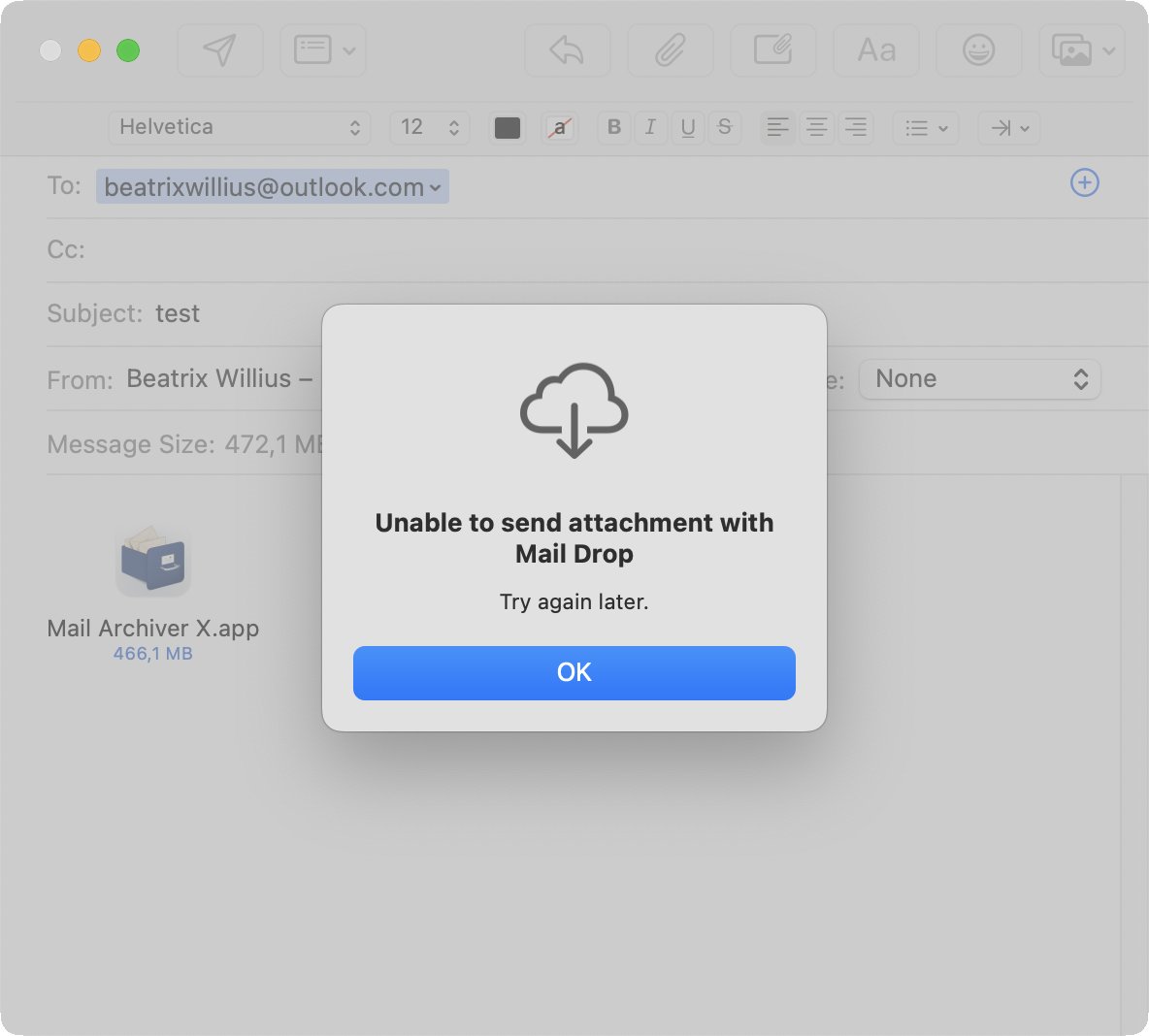
The error message was gone a couple of minutes later.
Using Mail Drop on iCloud
While Mail gave me the wonderful error message above I did some testing with iCloud. iCloud asked me if I wanted to use Mail Drop:
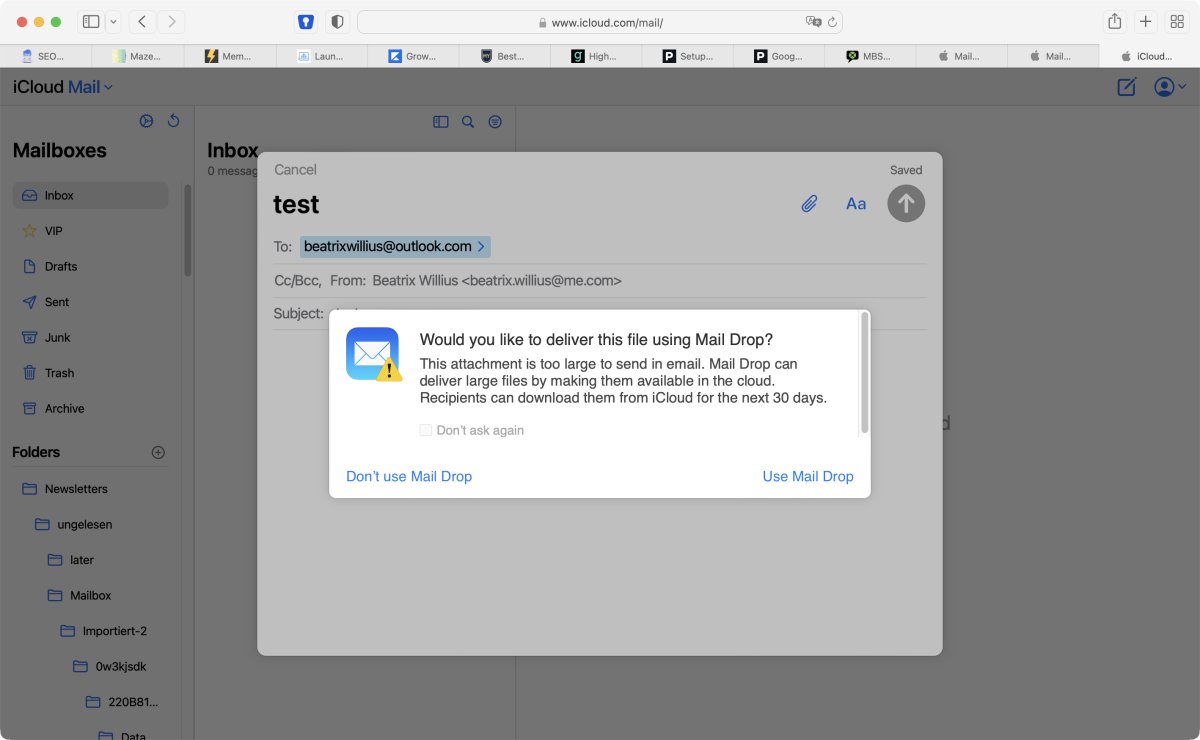
Showing buttons as buttons and arranging information is absolutely terrible on iCloud. Both "buttons" should be next to each other and not at the opposite sides of the dialog.
It took quite a while for the app to upload. There was a progress but it wasn't very visible:
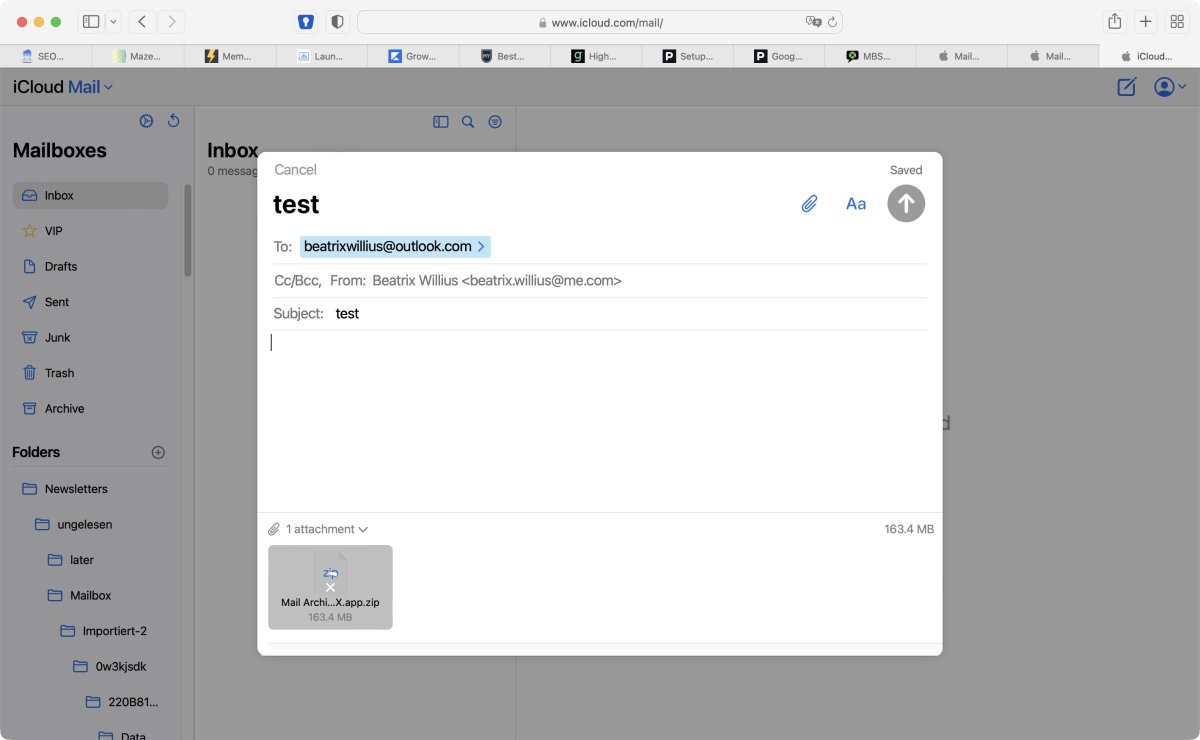
After the file as uploaded iCloud needed to do some meditation before the Send button became active:

And finally I was able to send the email.
Receiving an email with a MailDrop attachment
All attachments sent with Mail Drop are only available for 30 days. However, in Mail there is no indication at all that an attachment came from Mail Drop:
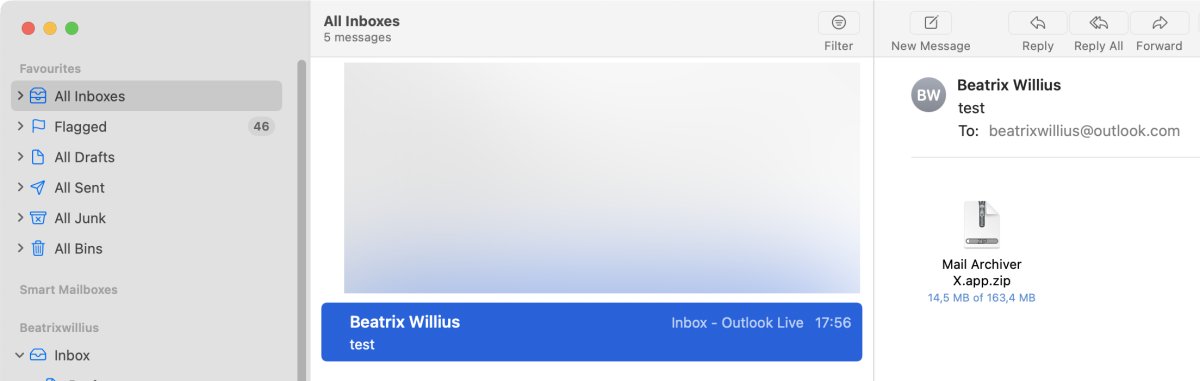
iCloud shows some information:

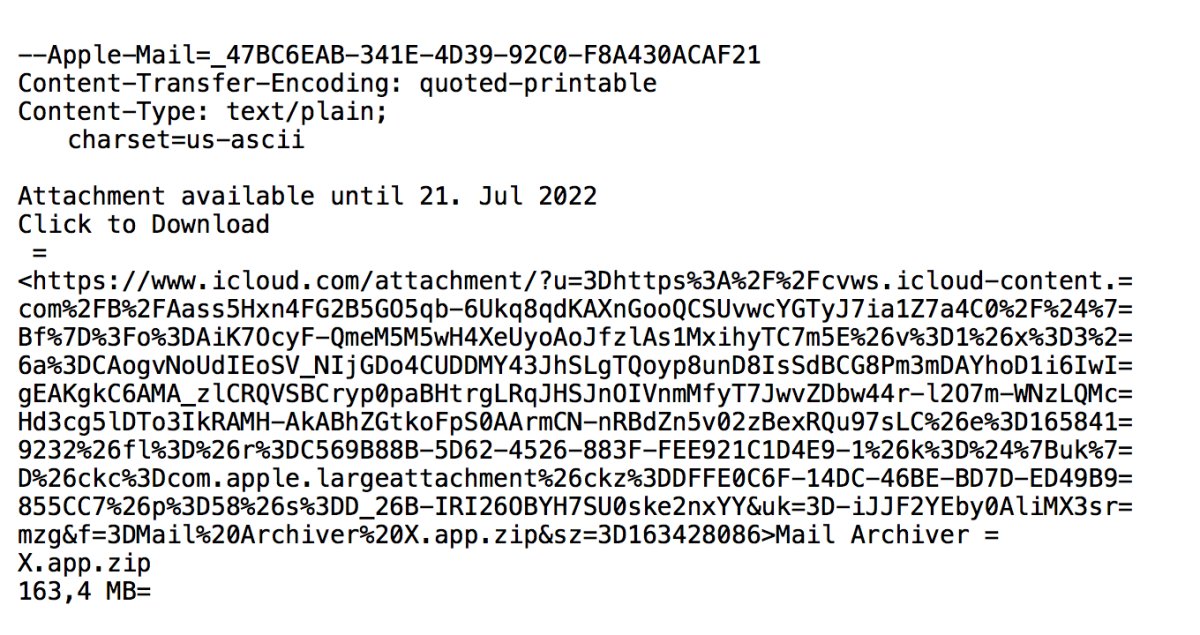
Where does the information come from? I checked the raw data of the email. The information is only in the text part and not in the html one:
Verdict
I had seen the "send with Mail Drop" before. But somehow I always thought that Mail Drop could only be used for iCloud accounts. So I was surprised to see that Mail Drop works with every account.
Error messages must give the user at least some hint what is going wrong. "I don't wanna" is the worst possible error message at all. I know that doing error messages is hard.
As user I also expect to get appropriate information. In my very first Mail Drop test I thought that the large email was sent without Mail Drop because there was no extra information. Why does iCloud show the test "attachment available until" and Mail does not? Really odd.
Using Mail Drop - when it works - is simple. But without the information about the availability date of the attachments I will continue to prefer FTP or WeTransfer. I might do a feature request about adding the missing information to the html part of the email.