


Developing the script
A user at the german Apfeltalk forum wanted to know who sent him the most emails. That's something easy to do with AppleScript. I already made AppleScripts to get the mailboxes and how to get data out of emails for Mail.
I made the script so that it works only for one account. You will see below why this is the case. So first I need an account name. Then I get the mailboxes for the account:
--get the account
set AccountName to ""
if AccountName = "" then
display dialog "Please enter an account name first!"
return
end if
set theAccount to account AccountName
--get mailboxes for account
set AccountMailboxes to mailboxes of theAccount
Now comes the interesting part. I need to do a loop over the mailboxes. With the number of emails in a mailbox I do a second loop over the emails:
set this_data to ""
--loop over the mailboxes of the account
repeat with accountMailbox in AccountMailboxes
set NoOfEmails to number of messages of accountMailbox
-----------------for testing the number of emails per mailbox is set to 10
--if NoOfEmails > 10 then set NoOfEmails to 10
--loop over the emails of the mailbox
repeat with currentemail from 1 to NoOfEmails
set theEmail to message currentemail of accountMailbox
set theSender to sender of theEmail
set theDate to date received of theEmail
set theSubject to subject of theEmail
set this_data to this_data & theSender & "," & theDate & "," & my quote_for_csv(theSubject) & return
end repeat
end repeat
The last part of the script is the boring part where the data is written to a file on the desktop. Below is the full script:
tell application id "com.apple.mail"
set this_data to ""
--get the account
set AccountName to ""
if AccountName = "" then
display dialog "Please enter an account name first!"
return
end if
set theAccount to account AccountName
--get mailboxes for account
set AccountMailboxes to mailboxes of theAccount
--loop over the mailboxes of the account
repeat with accountMailbox in AccountMailboxes
set NoOfEmails to number of messages of accountMailbox
-----------------for testing the number of emails per mailbox is set to 10
--if NoOfEmails > 10 then set NoOfEmails to 10
--loop over the emails of the mailbox
repeat with currentemail from 1 to NoOfEmails
set theEmail to message currentemail of accountMailbox
set theSender to sender of theEmail
set theDate to date received of theEmail
set theSubject to subject of theEmail
set this_data to this_data & theSender & "," & theDate & "," & my quote_for_csv(theSubject) & return
end repeat
end repeat
--use file on desktop
set this_file to (((path to desktop folder) as string) & "apple script data.csv")
--write data to file
my write_to_file(this_data, this_file, true)
end tell
--routine for writing data to file
on write_to_file(this_data, target_file, append_data)
try
set the target_file to the target_file as string
set the open_target_file to open for access file target_file with write permission
if append_data is false then set eof of the open_target_file to 0
write this_data to the open_target_file as «class utf8» starting at eof
close access the open_target_file
return true
on error
try
close access file target_file
end try
return false
end try
end write_to_file
--replace " with "" and add " at beginning and end so that a comma doesn't make a new field
on quote_for_csv(the_text)
set the_text to replace_chars(the_text, "\"", "\"\"")
return "\"" & the_text & "\""
end quote_for_csv
--replace characters in text
on replace_chars(this_text, search_string, replacement_string)
set AppleScript's text item delimiters to the search_string
set the item_list to every text item of this_text
set AppleScript's text item delimiters to the replacement_string
set this_text to the item_list as string
set AppleScript's text item delimiters to ""
return this_text
end replace_chars
Make a Pivot table in Excel
Of course, I could do the reporting part of the data in the AppleScript. But it takes me 10 seconds to make a Pivot table in Excel. It takes a lot more time to make some very simple report in an AppleScript.
I added a header in Excel. Afterwards I made the Pivot table with from as Rows.
Here is the result: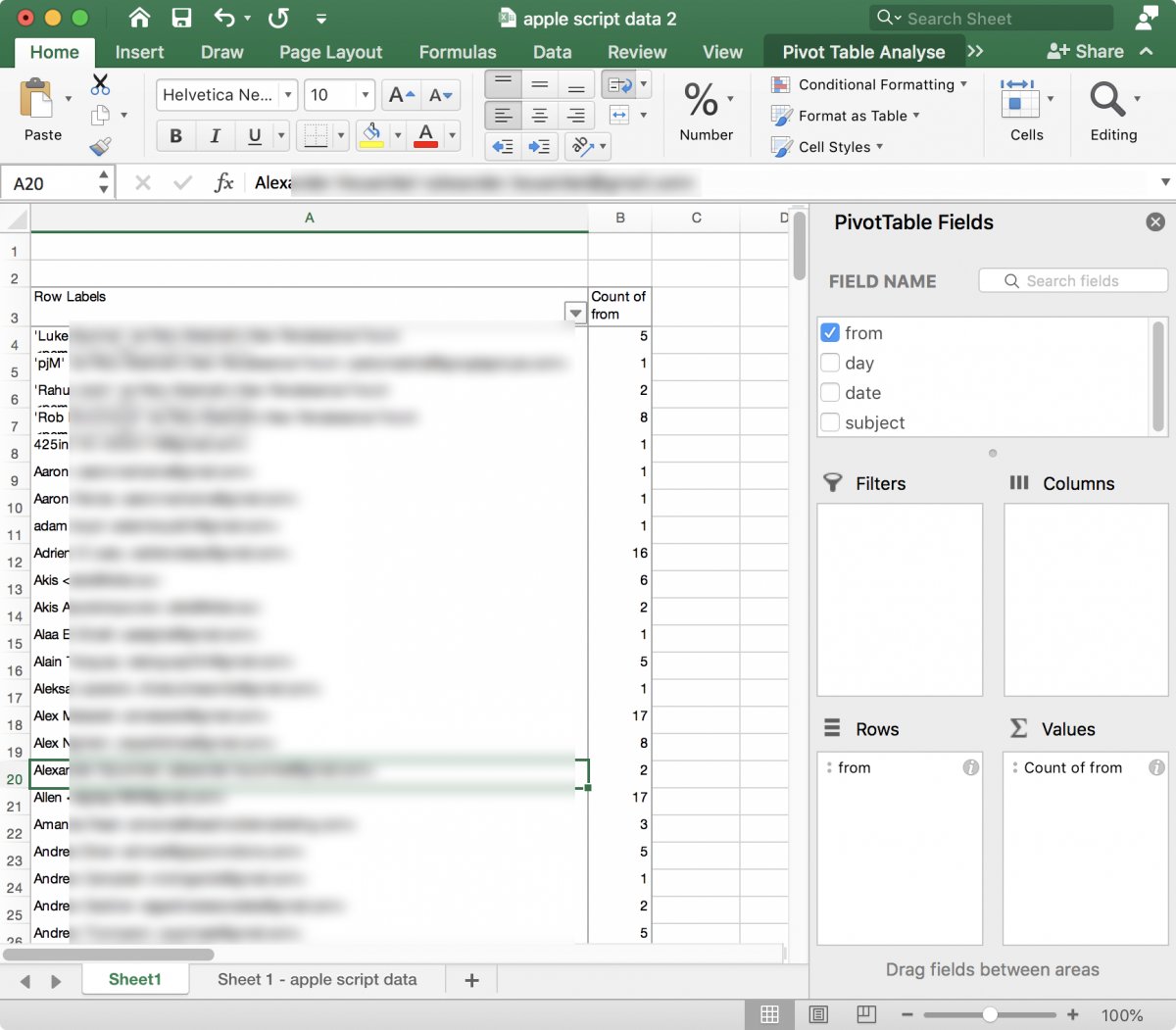
If you don't know how to make Pivot tables in Excel you are seriously missing out. There are enough videos and tutorials to get you started on creating Pivot tables.
I didn't do anything with the dates. I left them as is. It's likely that Excel didn't recognise them as dates. Fiddling with the date format always is annoying.
Lack of speed in the AppleScript
There is one big problem with the AppleScript: it's super slow. In the script for printing the selected emails the speed really doesn't matter when you select only some emails. The AppleScript above may run over thousands or tens of thousands of emails. I didn't fully time the script. But it ran between a minute or two for a test account with 1600 emails.
This is the reason why I didn't do another loop for all of the accounts in Mail. One account is slow enough.
For a one-time report with a lower number of emails the AppleScript is okay. But I would never ever do this for automated reports with a large number of emails.
A simple report in Mail Archiver would be much faster. It's even possible to export data from Mail Archiver to Excel if you don't know how to do SQL. I must admit that I have to check the syntax for Pivot tables in SQL.